Specialist Calendar
The specialist calendar is available in two formats depending on the active plan. The Free plan (no payment) and Start plan have a basic calendar, while the Pro plan offers a professional calendar.
Basic Calendar
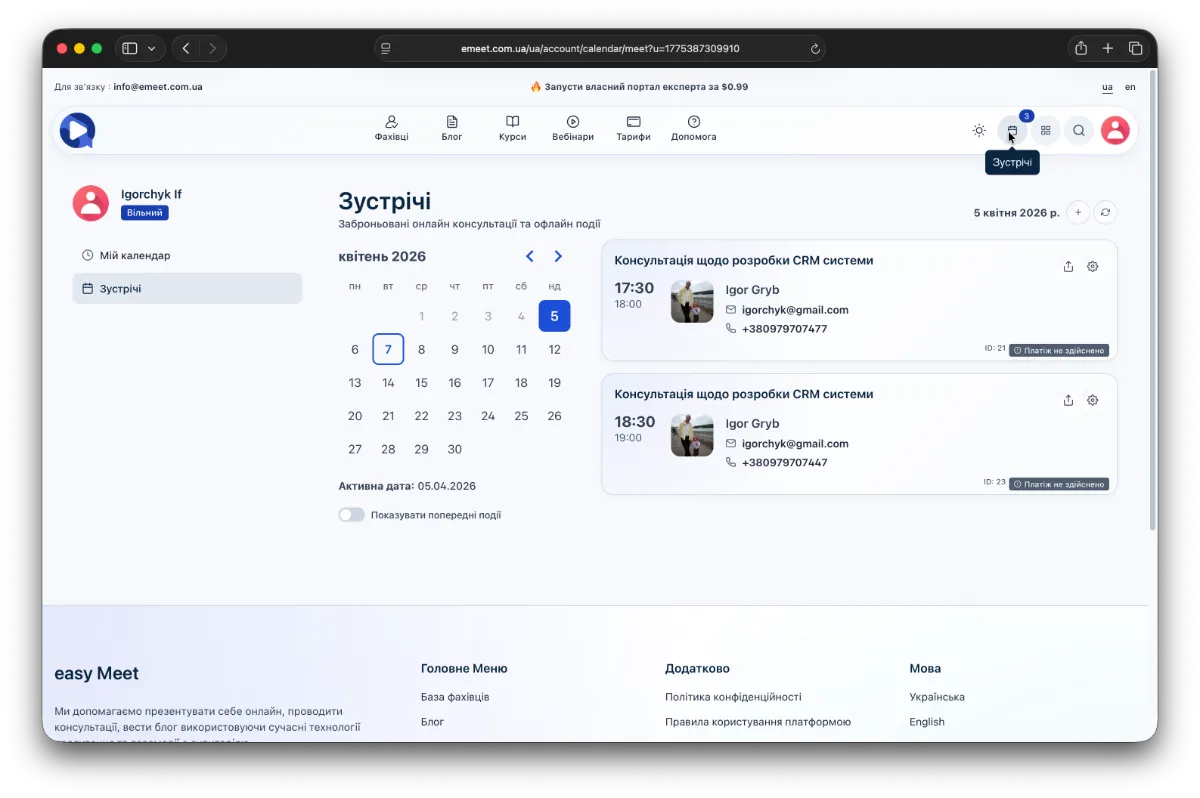
The calendar marks dates with booked consultations and events. Selecting a date shows their list. Each consultation (or event) card has several main options in its menu, including the ability to share a link to the consultation (if a consultation is booked). To access the options list, hover the mouse cursor over the gear icon in the top right corner of the event card.
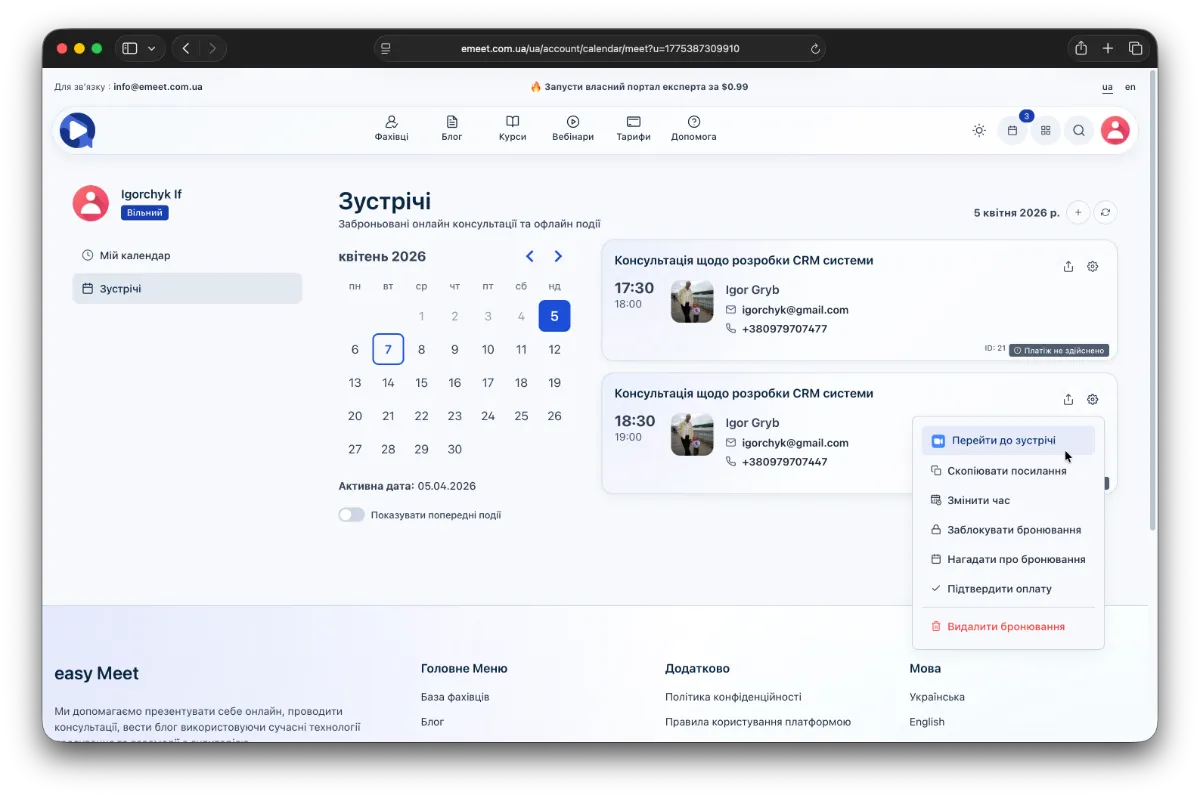
The following options are available:
- Go to consultation (for consultations)
- Copy link to the consultation
- Change time of the consultation or event
- Block booking
- Send booking reminder - your client will receive a notification by email
- Send payment reminder - your client will receive an email with a payment link (for paid consultations and events)
- Confirm payment if it was not processed automatically
- Delete booking
Professional Calendar
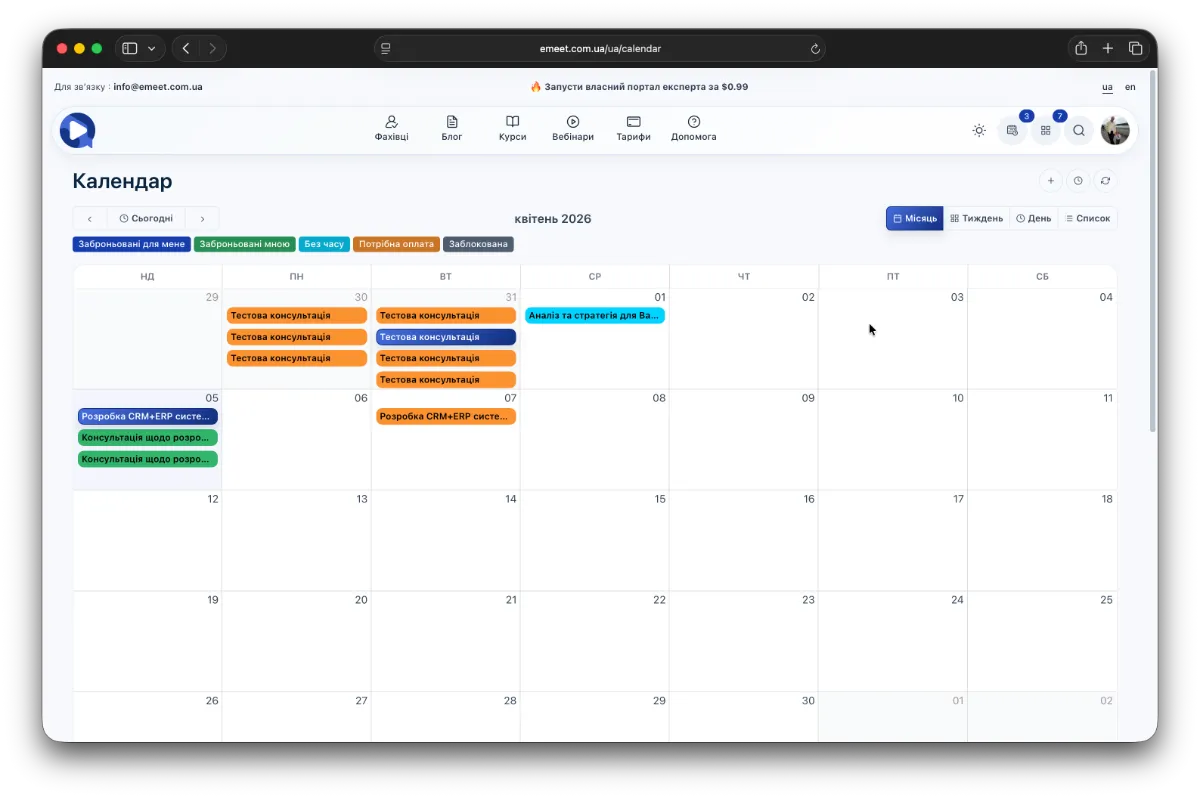
The professional calendar, available in the Pro plan, offers several display modes: month, week, day, and list. It visually shows the status of all bookings. Additionally, it automatically loads all your previous bookings within the displayed dates. Clicking on an event opens a detailed card with all necessary functions to manage the event in the calendar.
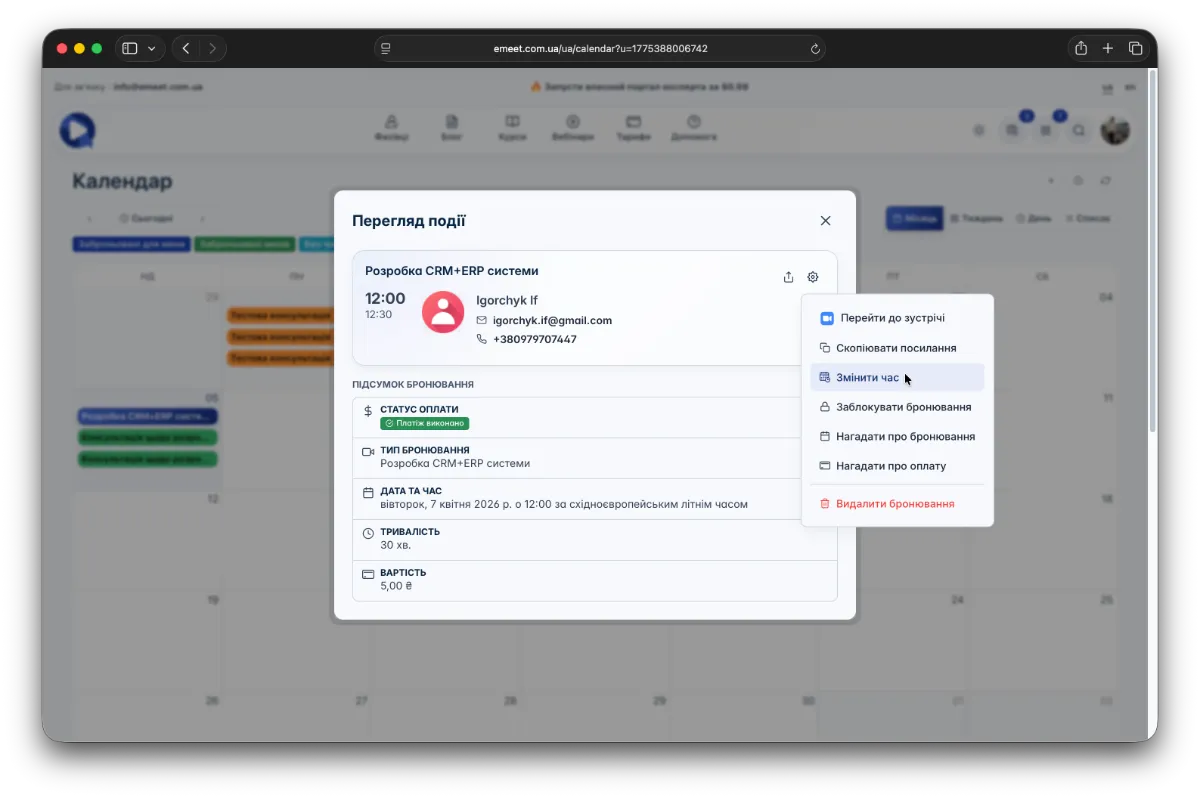
Changing booking time and date
With active Google and Zoom integrations, if you change the date and time of a consultation or event, these changes are automatically synchronized with Google Calendar and Zoom Calendar.