Creating a Specialist Profile
To create a specialist profile and use the platform as an expert, present your expertise online, and earn income from your services and courses, you need to log in, create a specialist profile, and activate it.
Authorization (and Registration)
There are two ways to register on the platform:
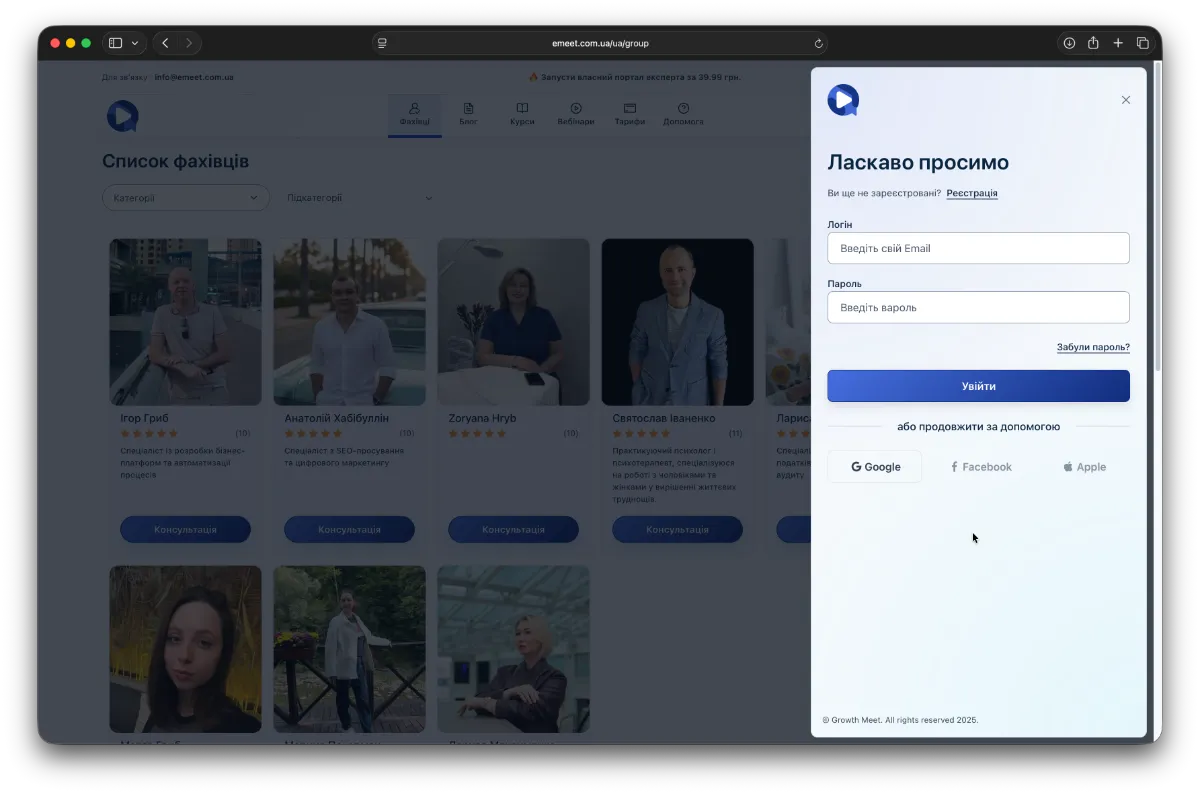
- Complete the registration process. To do this, click Log In in the top right corner and then Register. Enter your name, email, one-time OTP password, and set your login password. Your email will be your login.
- Automatic registration via Google authorization (we recommend registering or logging in this way on easyMeet). Click Log In in the top right corner, choose either Log In or Register, and at the bottom under "or continue with" use Google authorization by clicking the Google button and logging in with your Google account.
How to become a specialist?
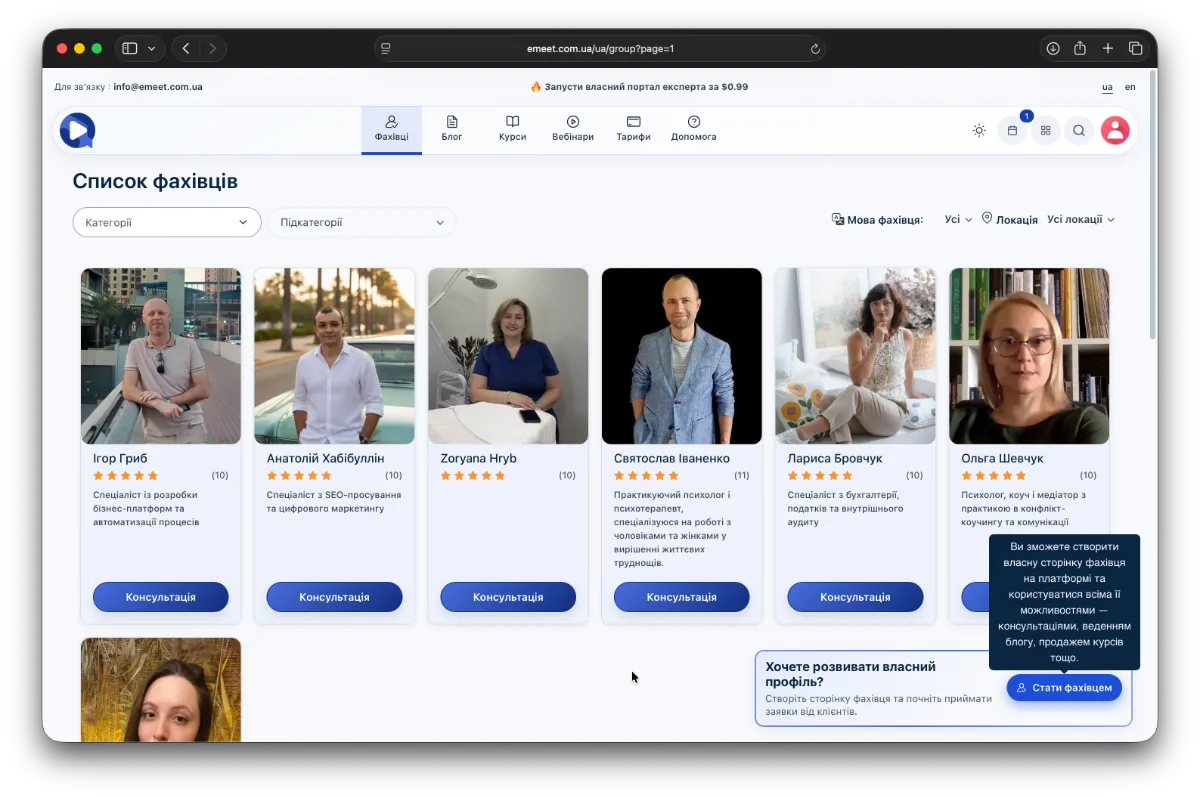
Go to My Profile (click your avatar in the top right corner of the main menu) and click the Become a Specialist button or use the popup panel in the right corner of the platform by clicking Become a Specialist.
Specialist Profile
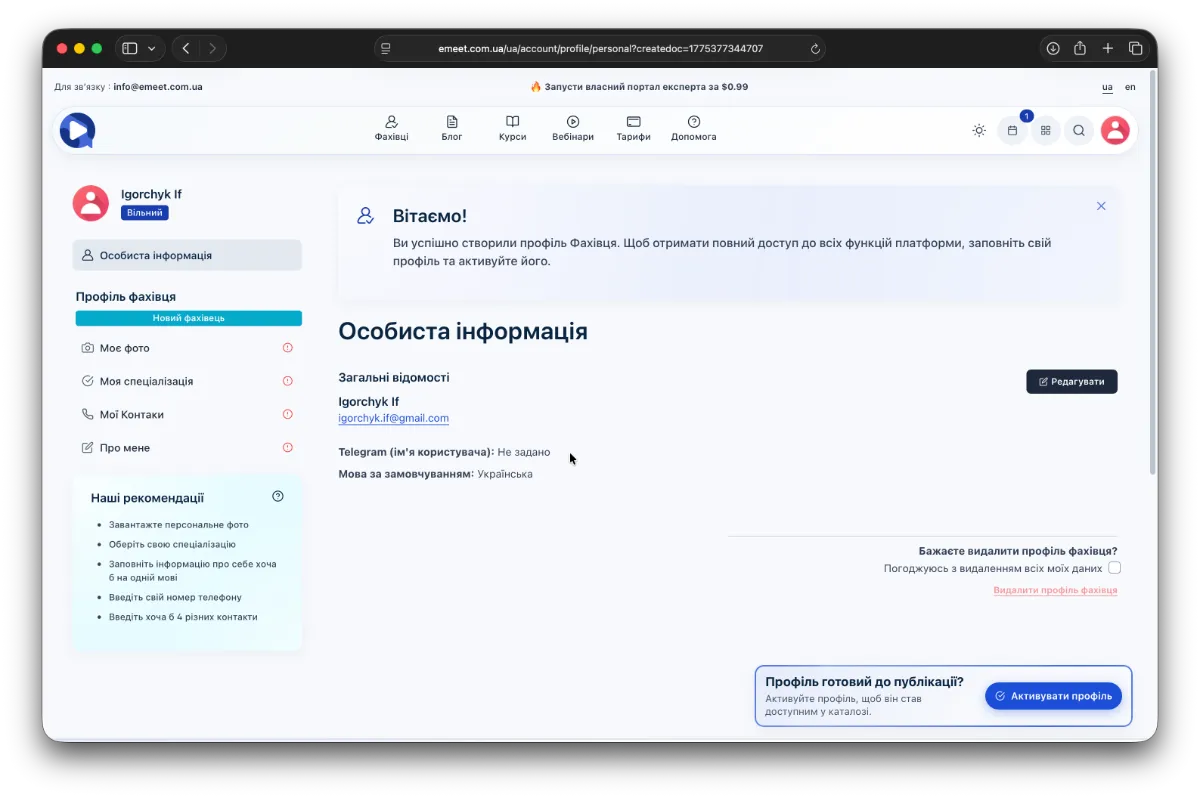
You will receive a welcome notification about the successful creation of your specialist profile, but to activate it and appear in the platform's specialist list, you must fill in your personal data, activity, and expertise, then activate the profile.
Main steps to complete your specialist profile
On the panel, you will see the Specialist Profile divided into four sections:
- My Photo. Upload your photo (you can adjust the visible area by dragging the photo within the frame and zoom in or out using the slider below), save it, and then click the Next Step button that appears after saving.
- My Specialization. Select the appropriate activity category by checking the boxes, then click Next Step.
- My Contacts. Click Edit and enter at least one contact (these contacts will be shown on your page in the main Specialist widget). After saving, the Next Step button will become available. Click it.
- About Me. This is the final step in preparing your specialist profile. Describe yourself, your activities, work approaches, and other aspects of cooperation. This is a key factor in building trust and interest.
There are several ways to do this correctly using AI. First, click the AI Help button, describe yourself in any form, and AI will generate a structured description.
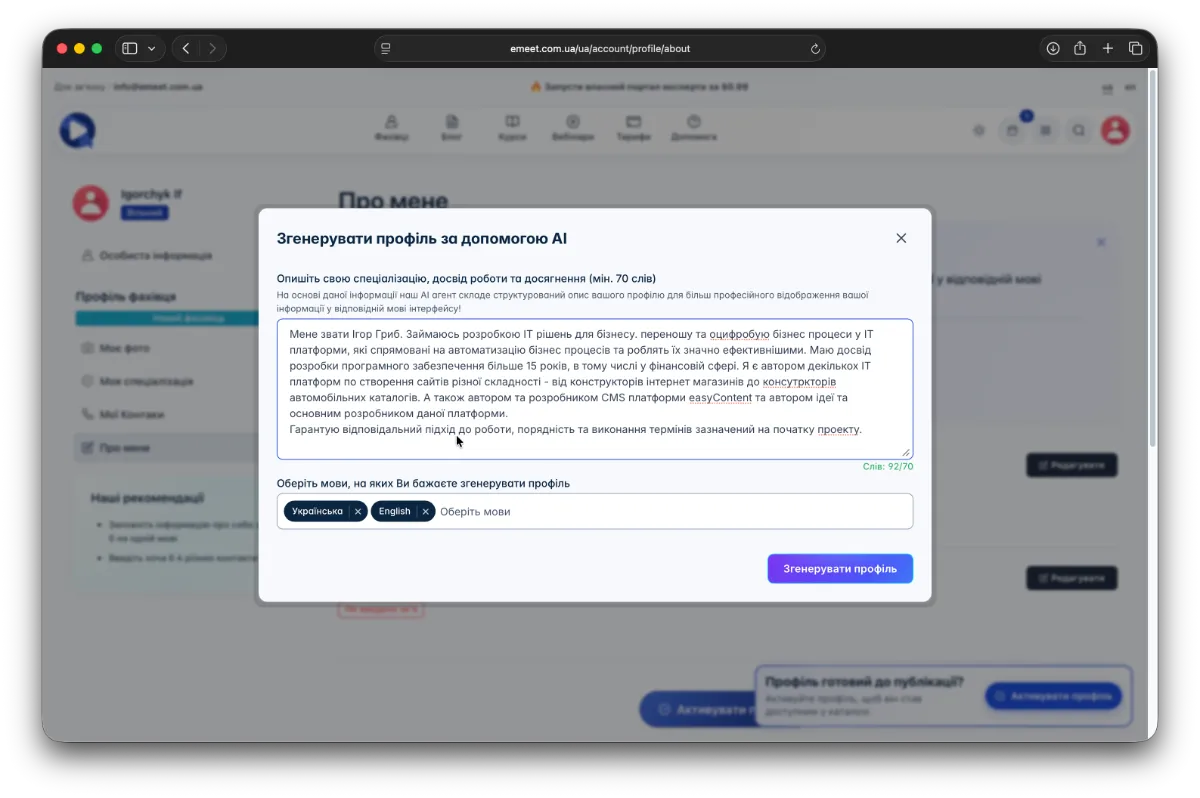
Select languages for the description generation and click Generate Profile.
You will receive a structured "About Me" description in all selected platform languages.
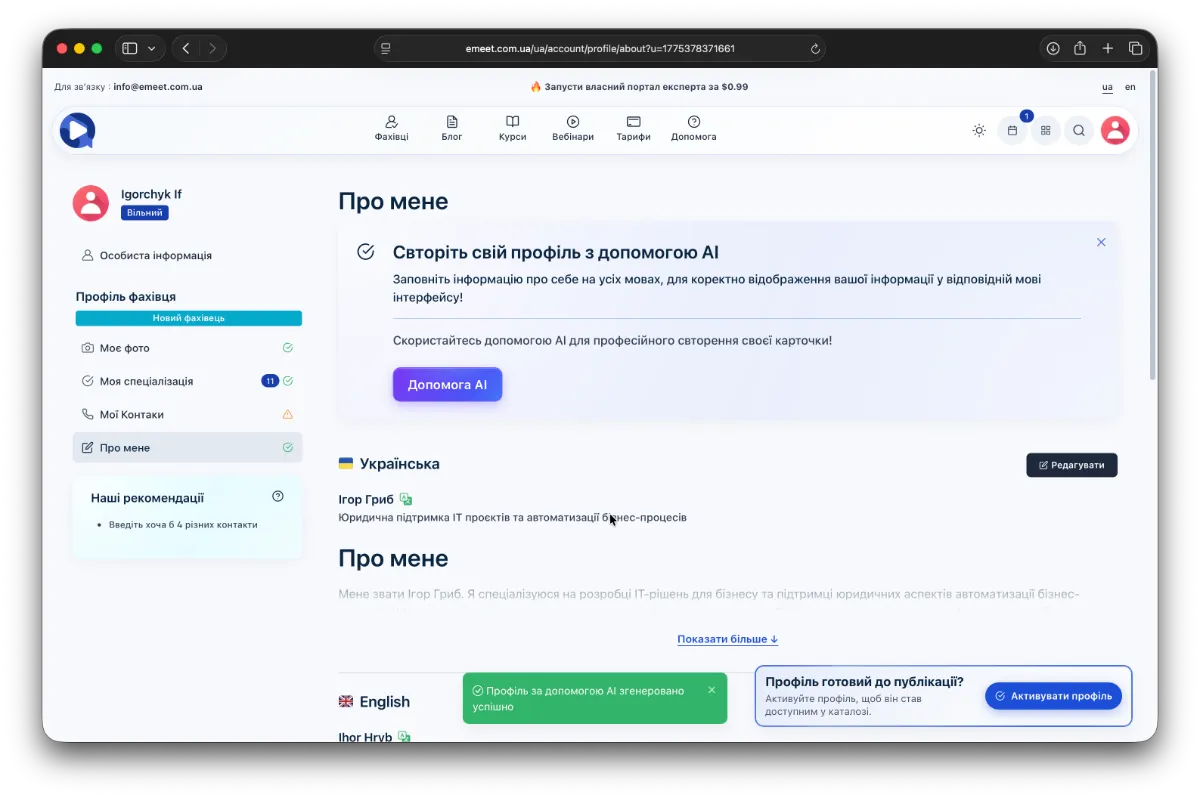
Editing the specialist description
However, sometimes AI generates text with inaccuracies (like any AI), so you can correct them by clicking the Edit button (available for each language).
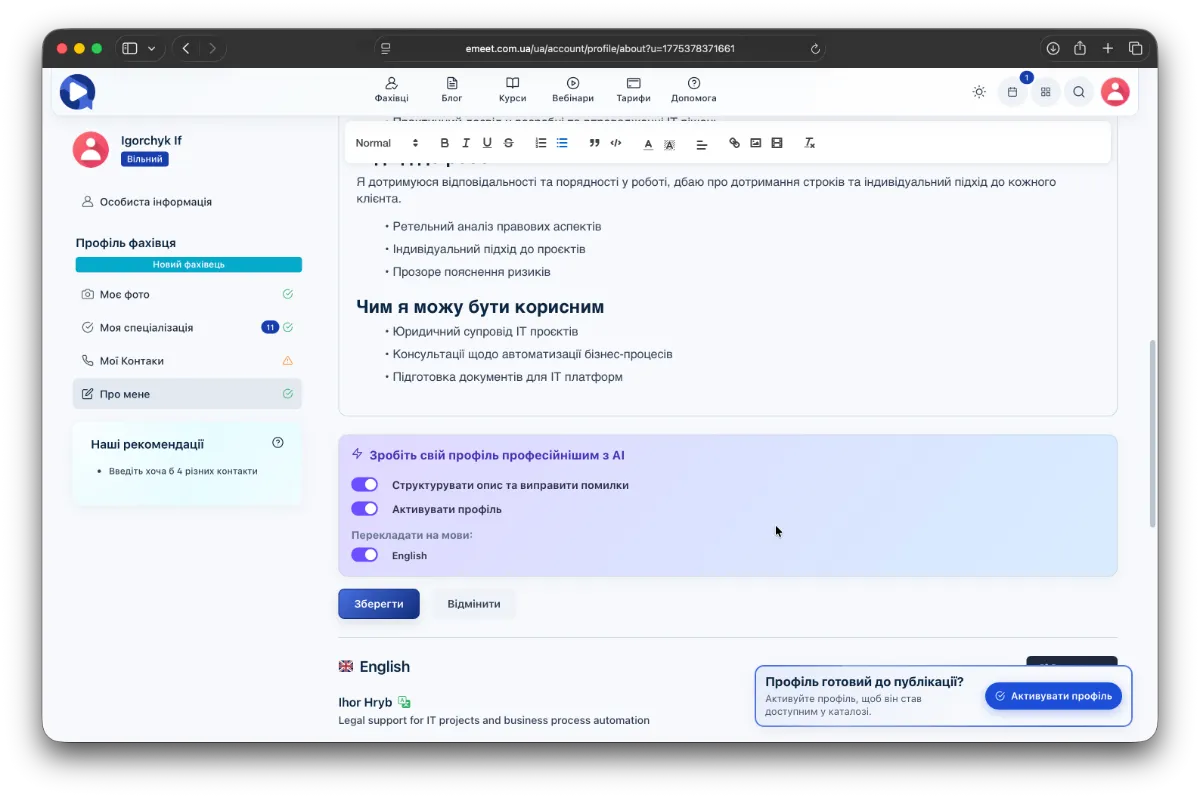
After editing, you can restructure the text, translate, and correct errors using AI. At this stage, AI does not make significant changes or add content, it only structures, corrects grammar, and translates if this option is enabled.
Activating the specialist profile
To have your profile appear in the list of available specialists, you need to activate it. If the Activate Profile option is enabled, your profile will be sent for activation automatically after saving your information (or you may need to click the Activate Profile button after saving).
The next step is a review of your profile and data accuracy by our specialists. This usually takes from a few minutes to an hour.
This review is necessary for your profile's and platform's reputation. If you have an active paid plan "Start" or "Pro", the review happens in the background, and the profile is activated instantly. If inappropriate content (aggressive, political, pornographic, or other violating platform rules) is found, the profile may be blocked or returned for editing.
After activation or status change, you will receive a notification by email.
Your Specialist Page
To quickly access your specialist page, use the My Page menu item (click your avatar in the main menu).
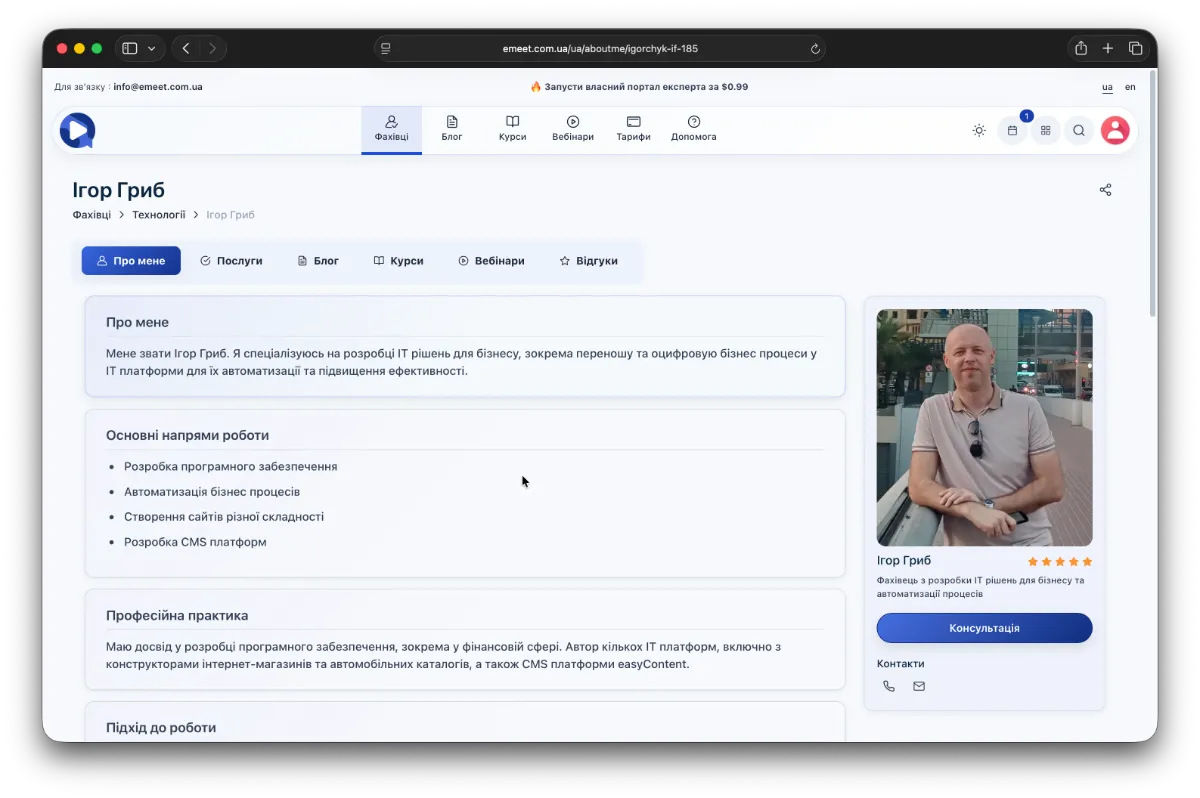
Editing your profile
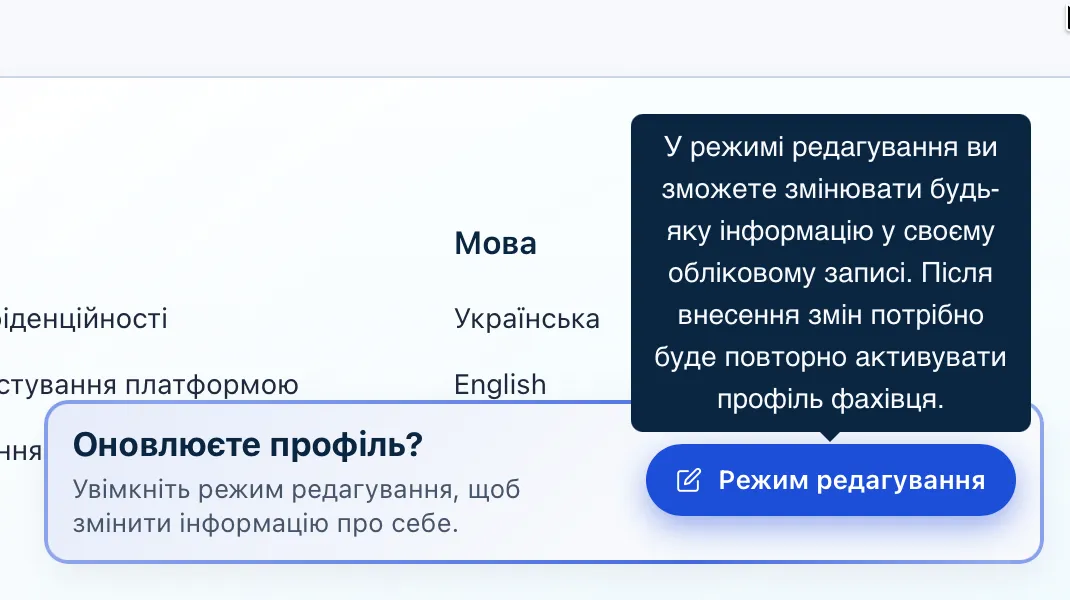
To make changes to your profile, enter edit mode. In the menu, select My Profile and click the Edit Mode button on the widget in the bottom right corner. Then you can edit all your information (photo, specialization, contacts, and description). After changes, to display your profile in the specialist catalog, you need to activate it again.