Managing Ordered Services
To view your ordered services, go to My Office -> Customer Orders -> Ordered Services.
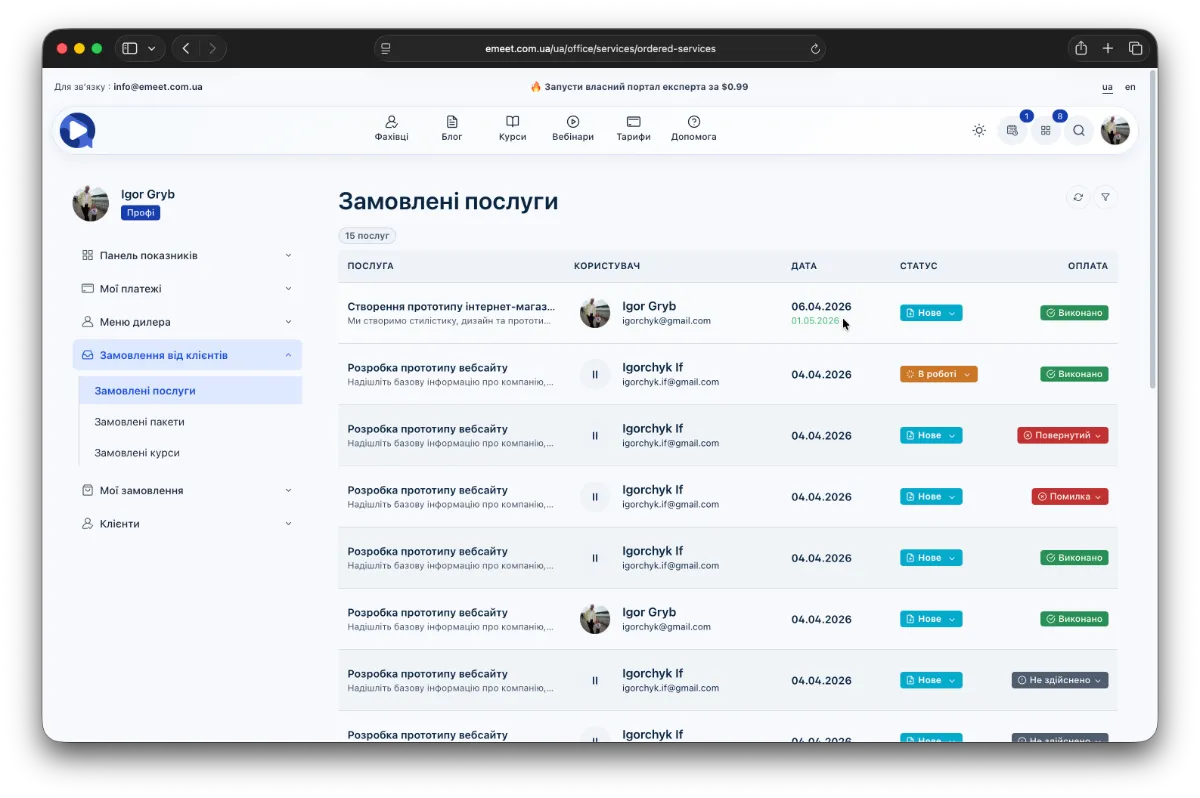
This table displays basic information about the ordered services. Additionally, in the Status column, you can change the status of each service.
Service Status
There are 4 service statuses available: New, In Progress, Completed, Rejected.
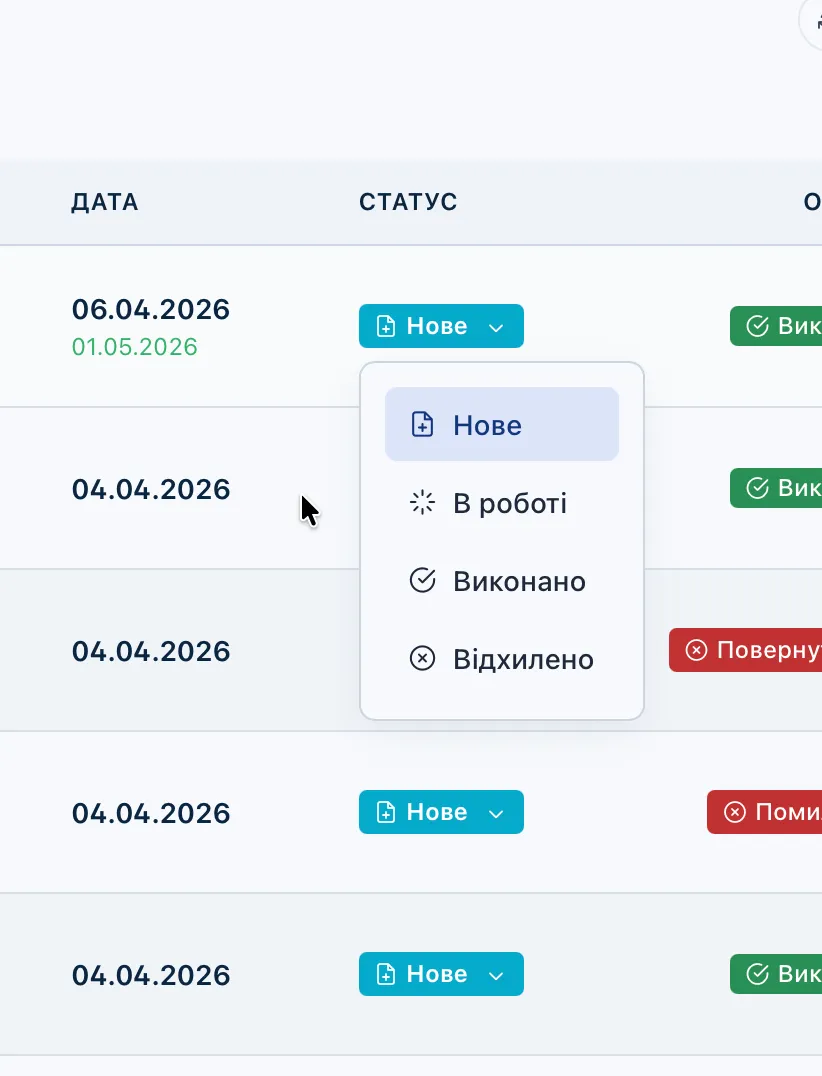
You can change them according to the service workflow.
Payment Status
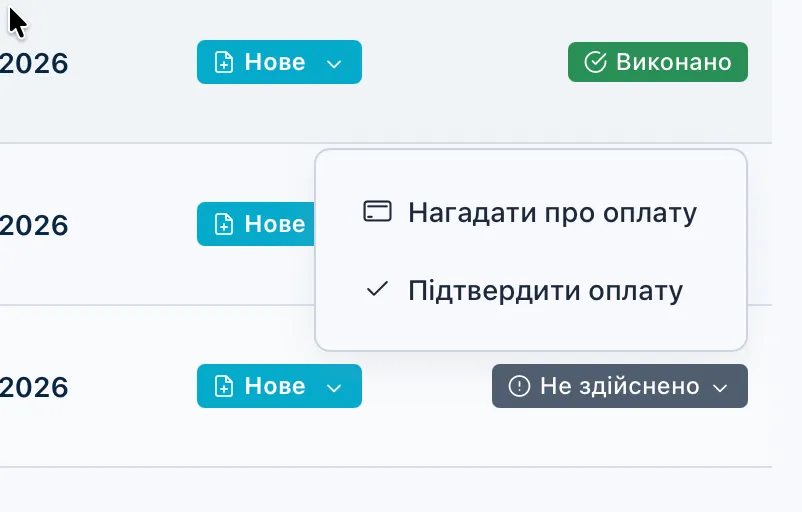
There is also a payment status. If payment has not been made, you can remind the client or mark the payment as completed if it was not tracked automatically for some reason.
Service Card
Clicking on the service name opens the service card with all order details - client description, attached files, and desired deadline.
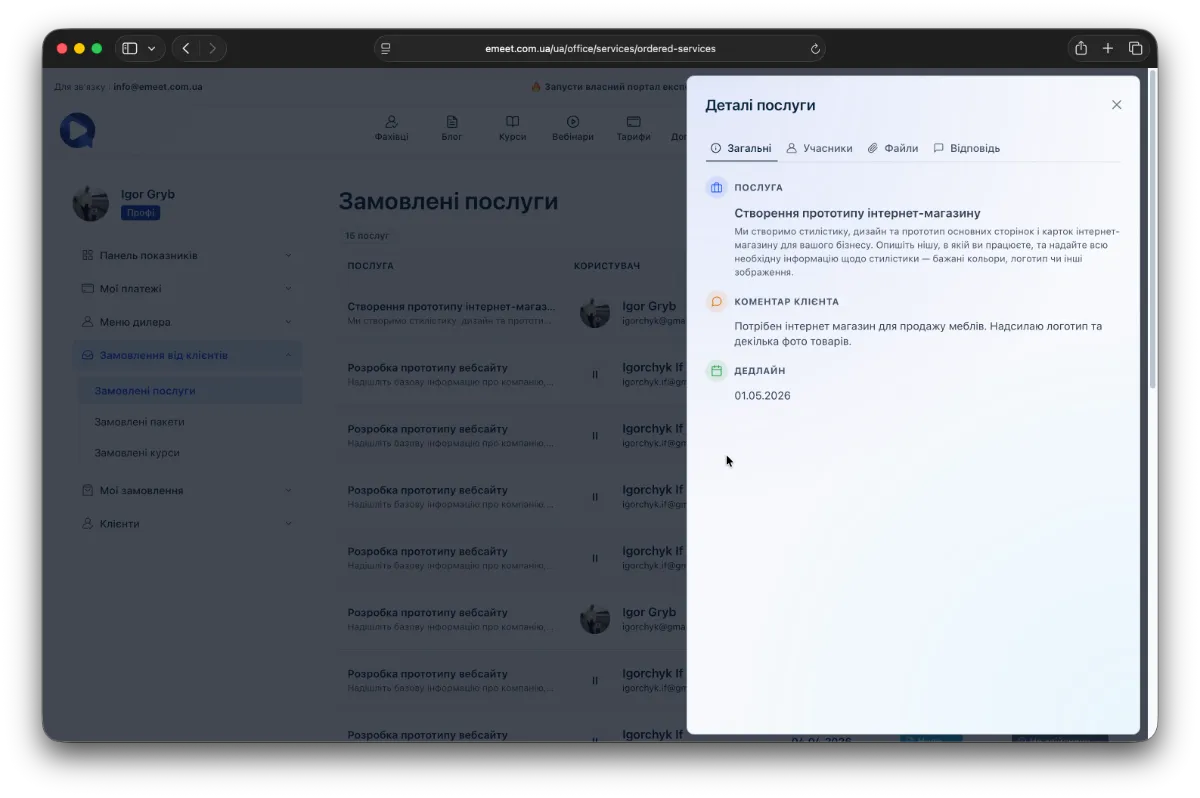
There are four tabs available:
- General - main service information, including client comments and deadline if allowed
- Participants - client and specialist
- Attached Files - all files attached to the service by the client and specialist
- Response - here you can provide a response to the client regarding the current service.
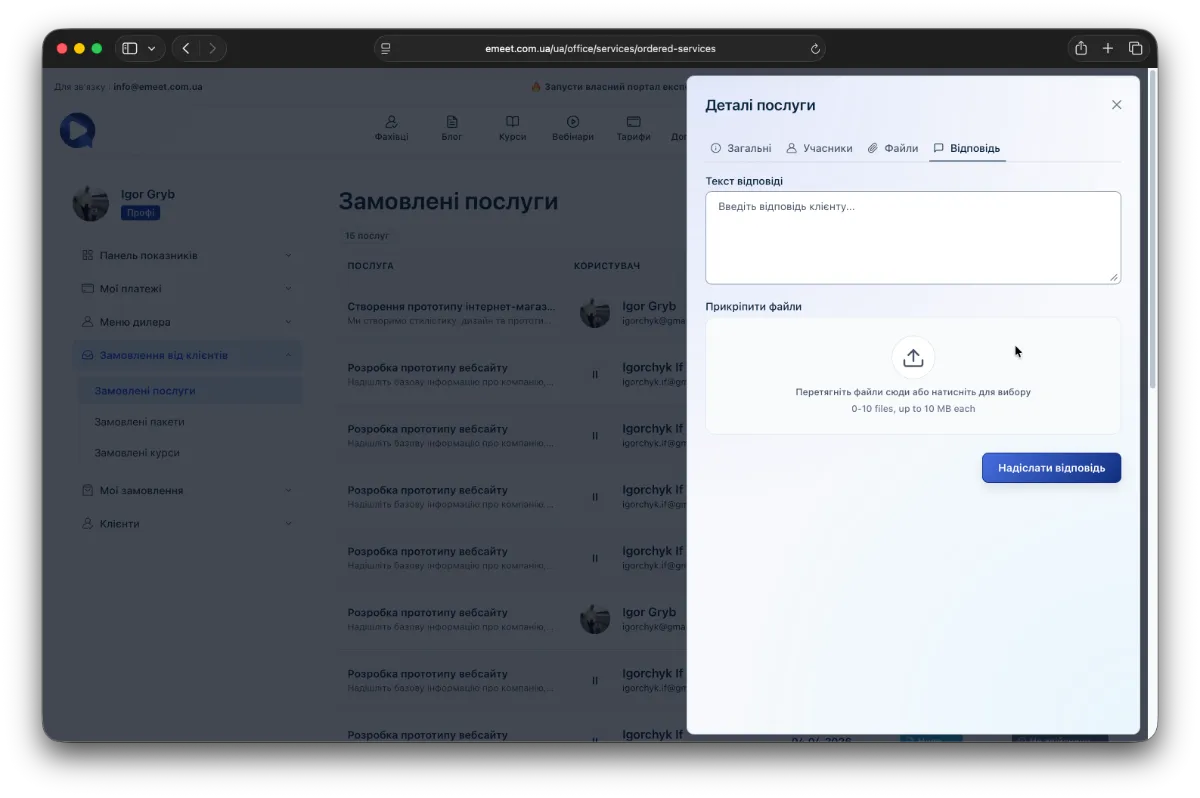
Describe your response, attach files if necessary, and click Send Response. Your client will receive a notification, and in their My Orders section, this service will appear with a similar card, except without the Response tab. Your response will appear in the General tab, and the service status will automatically change to Completed.
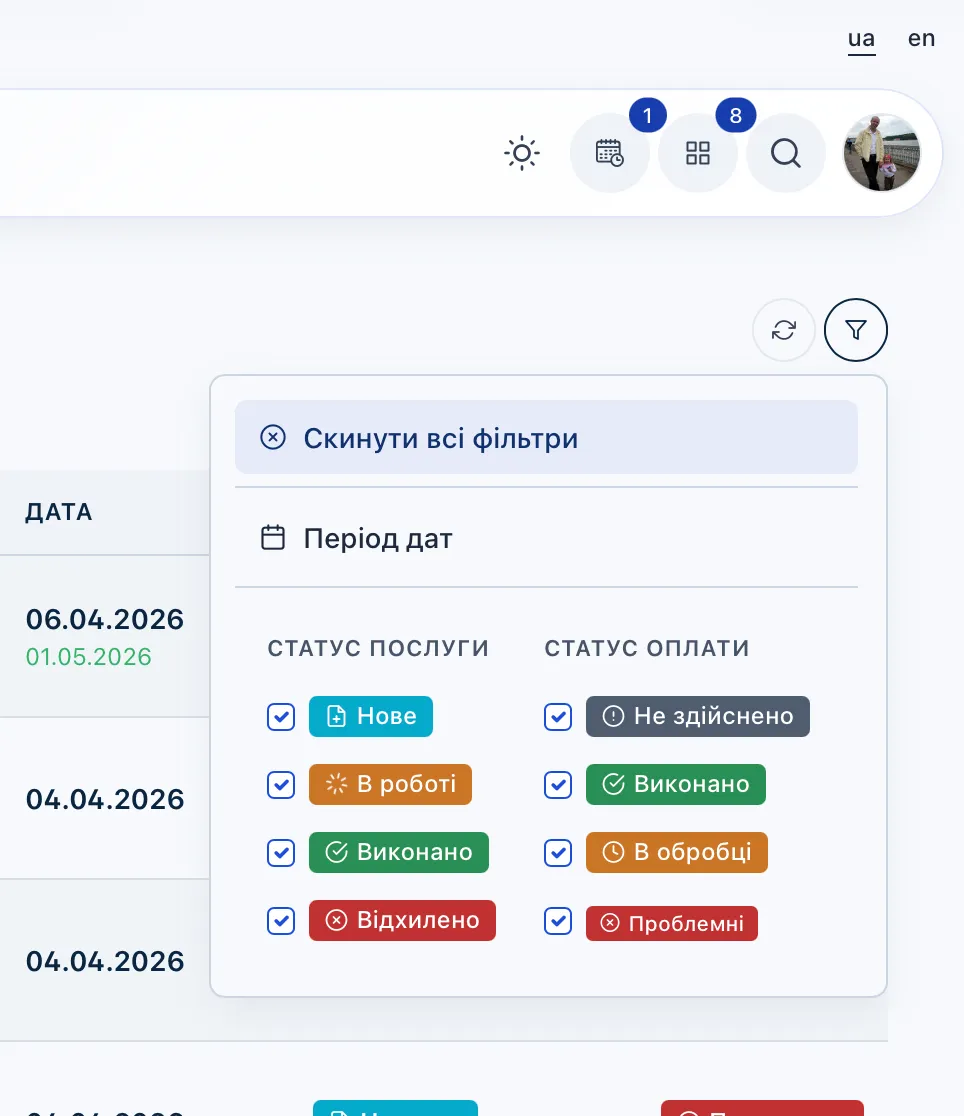
Ordered Services Filter
To work effectively with the ordered services database, filtering by main order parameters is provided.