Creating Consultations and Events
You can create different types of consultations and events that you promote or provide to your clients. The main difference between a consultation and an event is the online or offline format. A consultation is an online meeting format, while an event is offline. However, both consultations and events are booked for a specific date and time.
When ordering a consultation, the client can choose the app where it will take place – Zoom or Google Meet; when ordering an event, the event location will be displayed.
Accordingly, consultations are online services, and events are services you provide offline. For example: booking a haircut, manicure, or SPA procedures (if you have a beauty business).
Creating a Consultation and Event
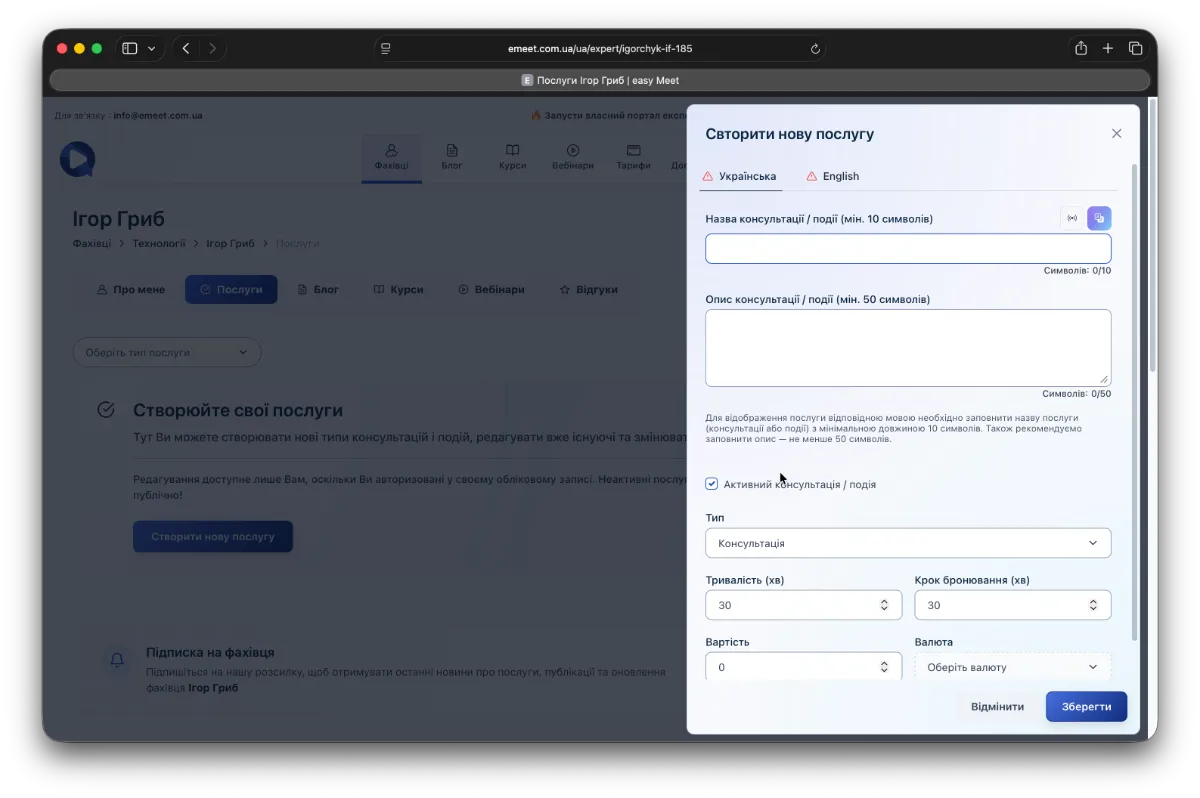
Go to your page (your menu -> My Page) in the Services section. Then click the Create New Service button. A dialog for creating a service will open on the right.
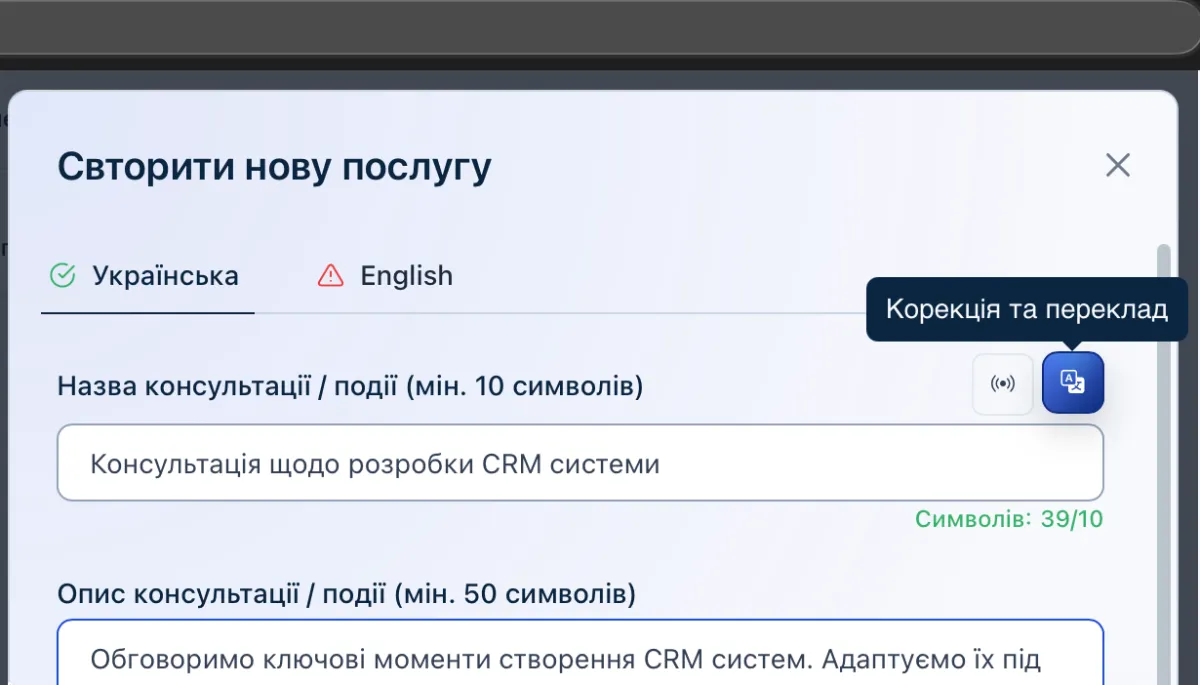
After entering the title and description, you can also use AI assistance to correct and translate into other platform languages.
Next, at the bottom of the creation dialog, select all additional properties: Type – consultation or event (for events, an additional field for entering the address integrated with Google Maps will appear), duration, cost, and currency of the consultation or event.
You can set the cost, and if you have the paid Pro plan and a connected payment system in settings, at the final booking step the client will be prompted to pay for the service immediately. In your consultations and events calendar, you will be able to track, manage, and remind clients about payment with additional email notifications. The easyMeet platform has an active payment tracking system, so payment statuses will always be up to date in your calendar events.
The Booking Step field requires additional explanation – it is the time interval in minutes that your calendar will be divided into time slots. For example, if the booking step is 15 minutes and you activate working hours in the calendar, clients will see slots in 15-minute increments (e.g., 14:00, 14:15, 14:30, 14:45, etc.). We recommend setting it to at least 15 or 30 minutes.
After filling in the title, description, and properties of the consultation or event, and after AI correction, click the Save button.
Your Consultations and Events:
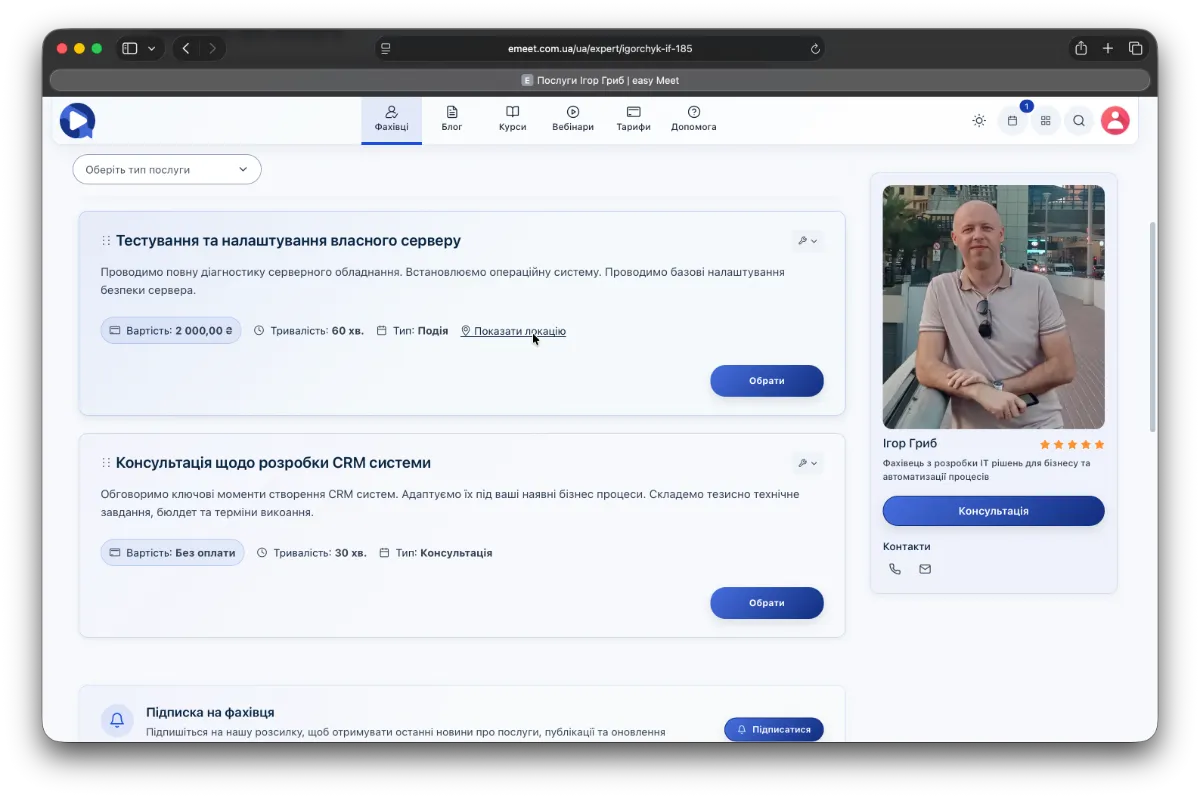
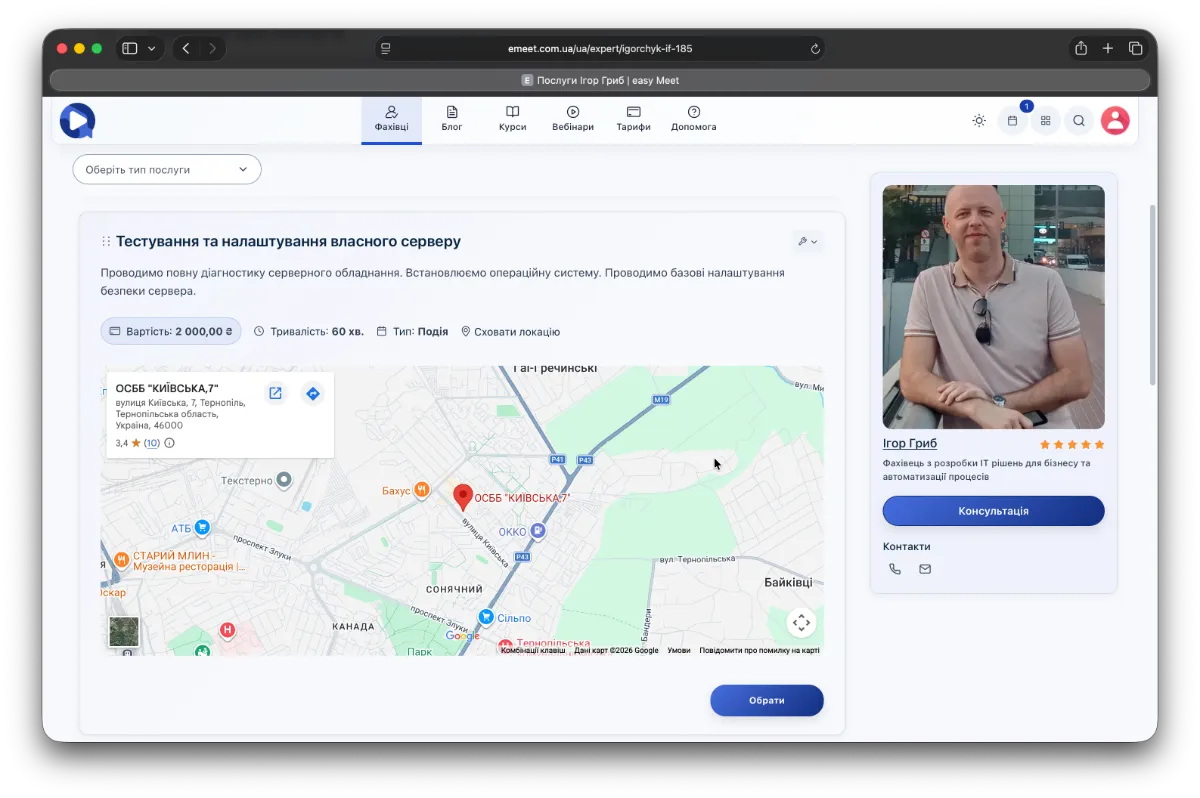
Additionally, events have a Show Location option that opens a map with your address to help clients find you easily.
Booking Consultations and Events
Clicking the Select button opens the booking wizard for events or consultations.
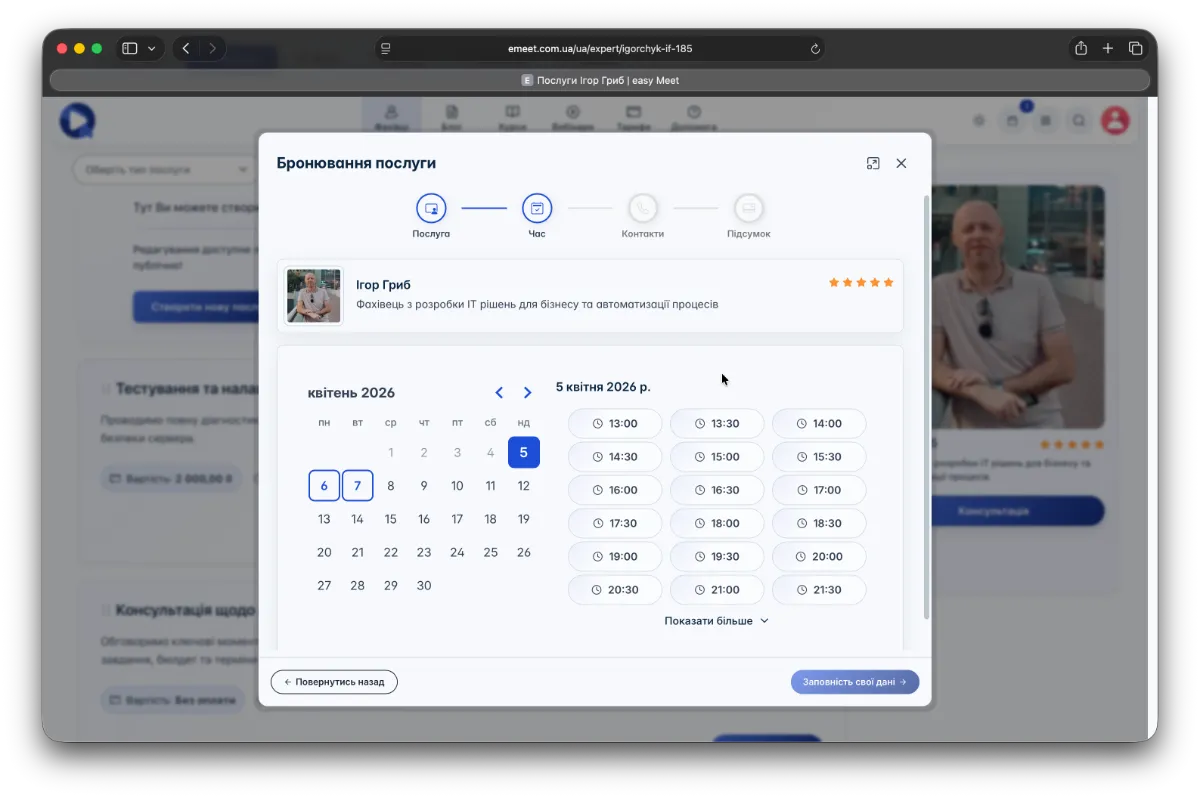
The calendar will highlight dates with available slots. Even if no slots are available or you haven't set working hours, clients can leave a request for a consultation or event, and you will determine the time.
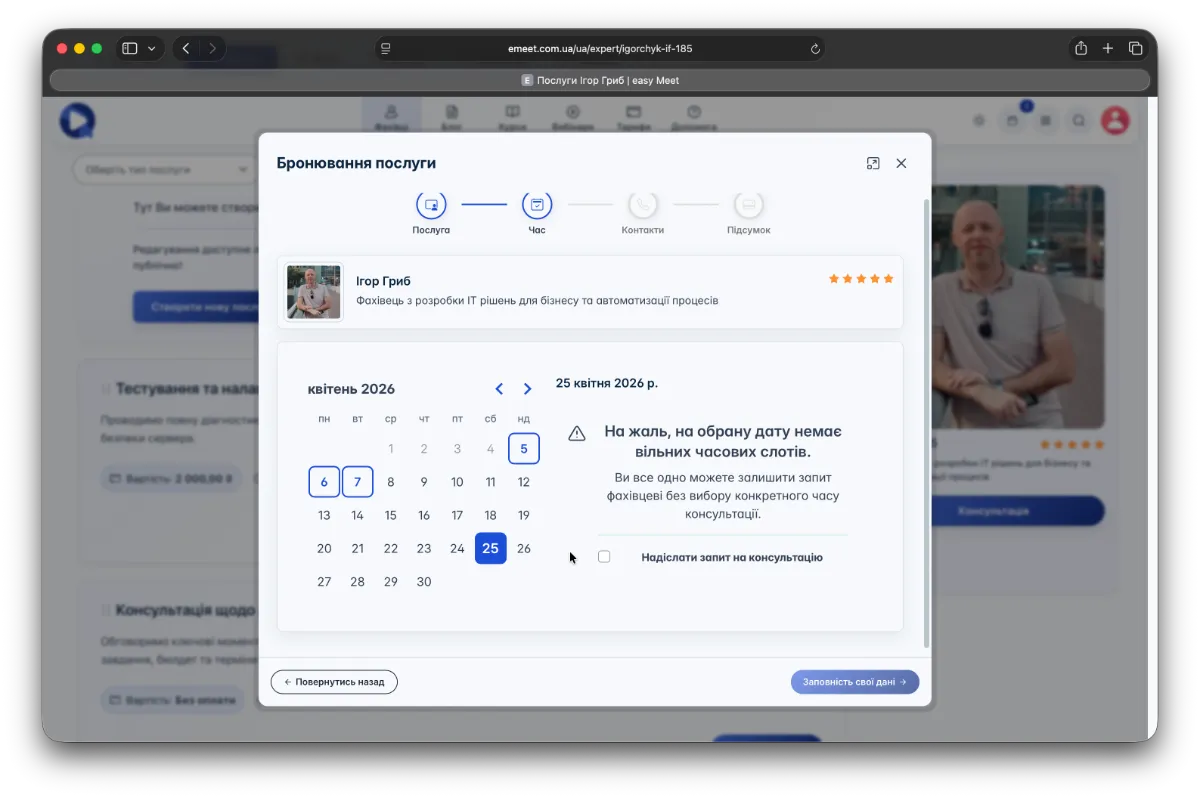
Then the consultation or event will be added to your calendar on the date chosen by the client, but you can set the time yourself (even choosing another date). After changing the consultation or event time, the client will receive an email notification, and their calendar will update the time. If both you and the client are authorized via Google, and you have an active subscription (at least Start) and the Google Calendar Integration option enabled, all events will sync with Google Calendar (both when created and when time is changed).