Basic Zoom and Google Meet Settings
easyMeet integrates with two of the most popular online conferencing platforms — Zoom and Google Meet.
Two Levels of Integration
There are two ways to work with these platforms. The basic level is integrating your static links into easyMeet consultations and events. Full integration involves generating individual links for each consultation, creating events in the Zoom calendar, and integrating Google Meet into Google Calendar events.
This article covers the basic level; full integrations are available in other materials.
Zoom Settings
The main task of Zoom setup is attaching the Zoom Invitation Link (your Zoom meeting room link) to consultations
To attach Zoom links at the basic level, open your Zoom app and enable the "Use my personal meeting ID (PMI)" option in the dropdown menu "New meeting" (arrow next to the orange New meeting button).
Enabling this option is IMPORTANT because it allows you to copy your static link, which will always be the same and active for all consultations.
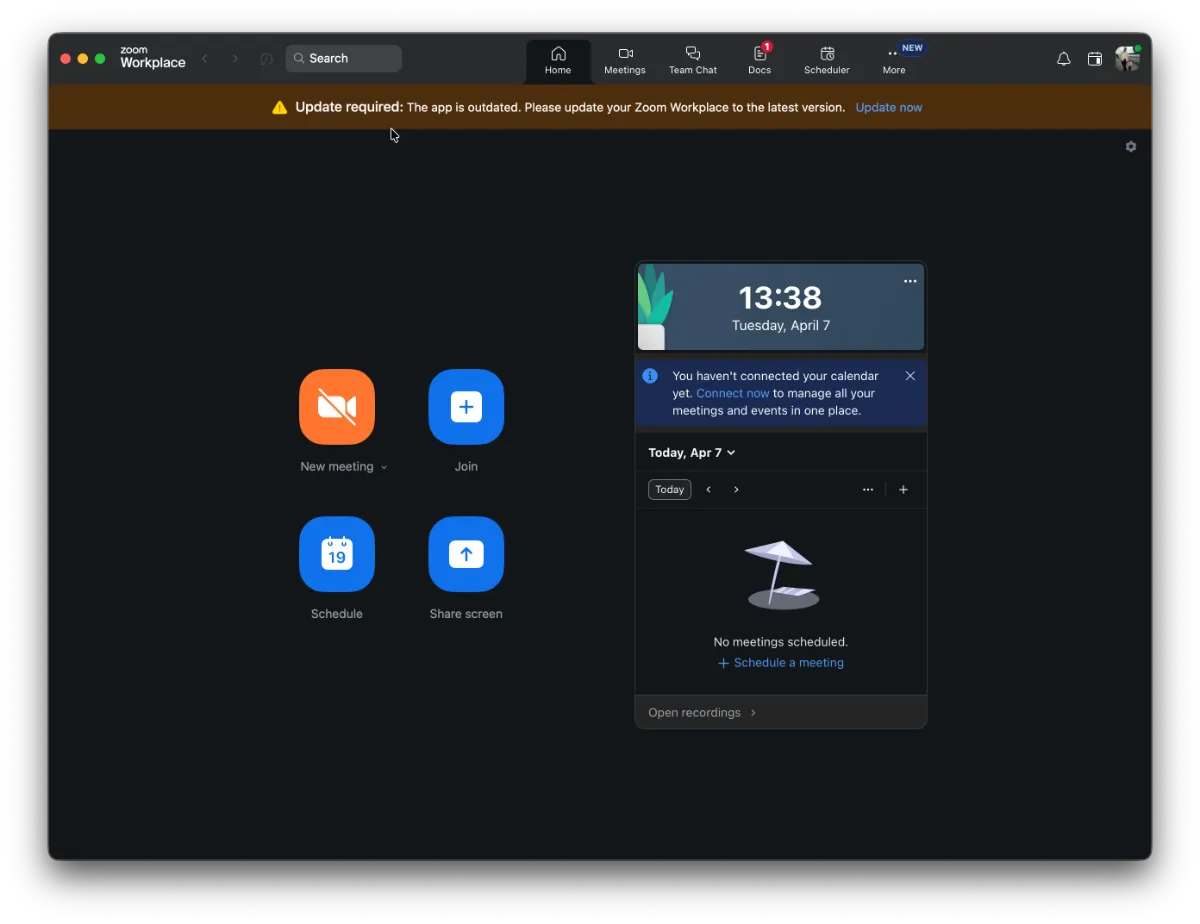
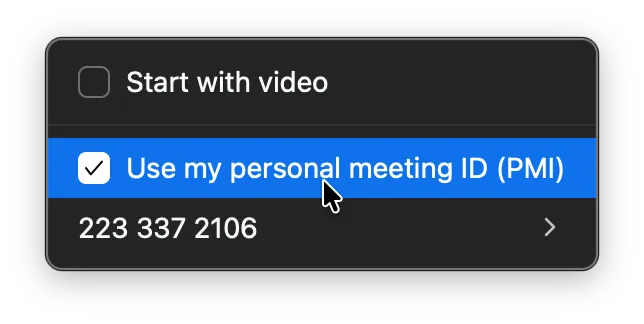
Then click the New meeting button (orange), and Zoom will launch your meeting room. Next, click the green icon in the top right corner of the video window and copy the "Invite link".
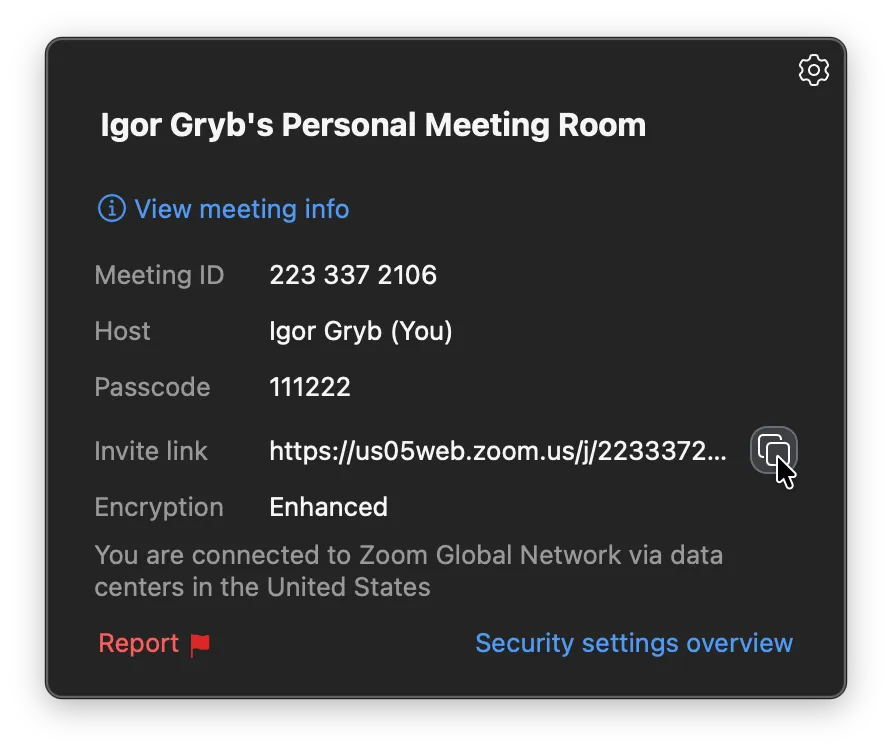
Paste this link into the Static Zoom Meeting Link field in the user menu under Settings -> Zoom Settings.
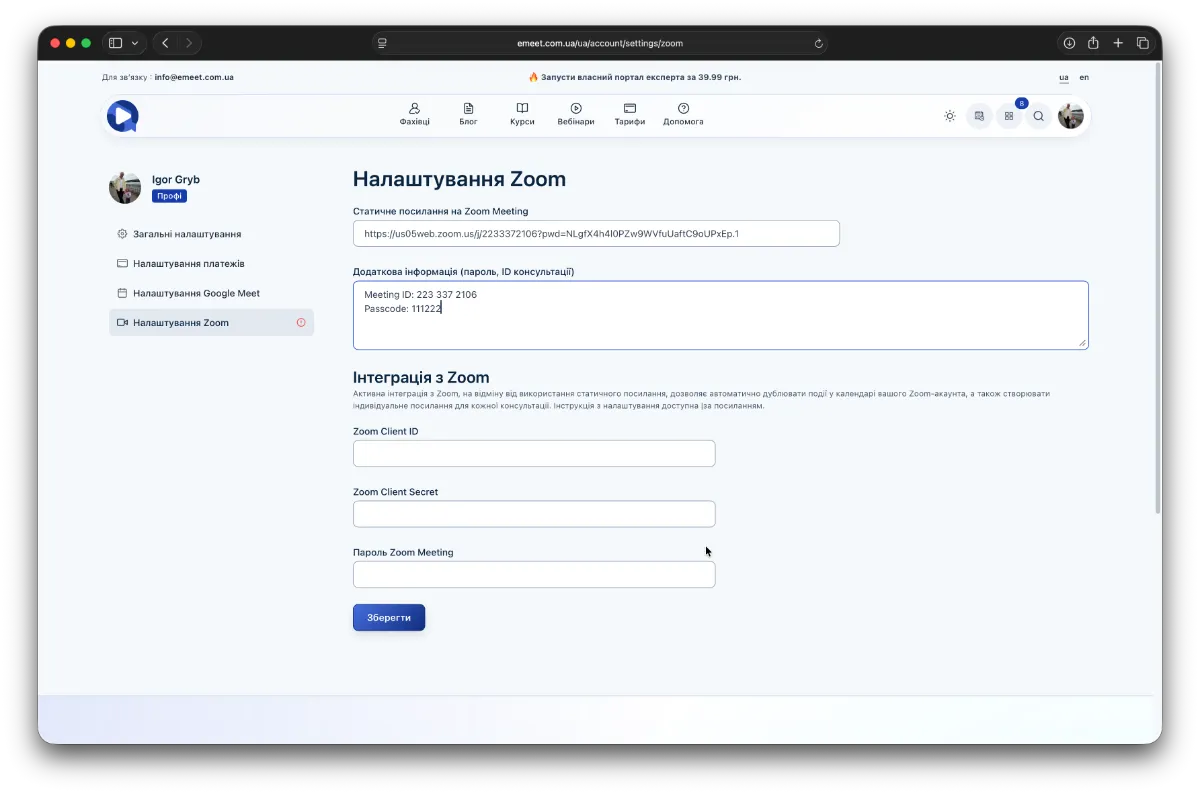
In the Additional Information (password, consultation ID) field, you can optionally add the meeting ID and password. This field is informational only and will be included in the consultation info email and integrated into the Google Calendar event text. The link will be active in both the easyMeet calendar event and the Google Calendar event, as well as in the consultation email sent to the client and specialist.
Another Way to Get the Invitation Link
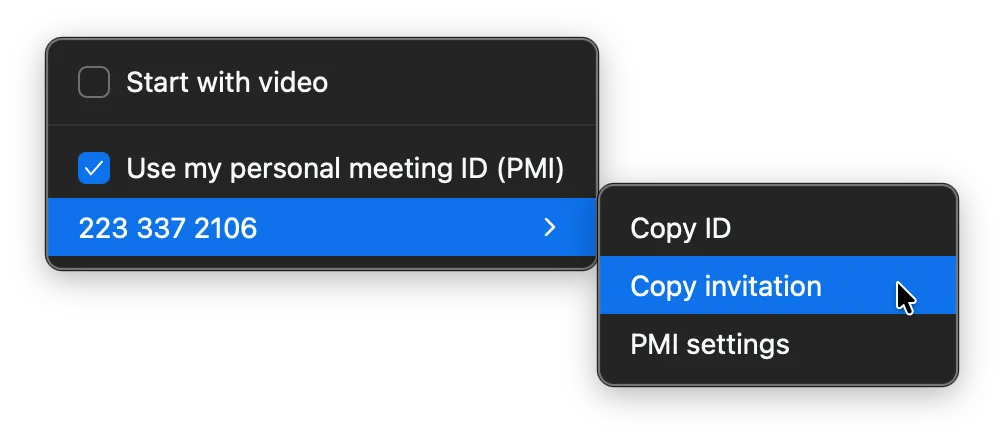
You can also get a static link to your Zoom meeting room by opening the Zoom app, selecting your Zoom ID in the New meeting dropdown menu, then choosing Copy Invitation in the submenu.
Then, in the user menu under Settings -> Zoom Settings, paste this invitation into the Additional Information (password, consultation ID) field (Ctrl+V on PC).
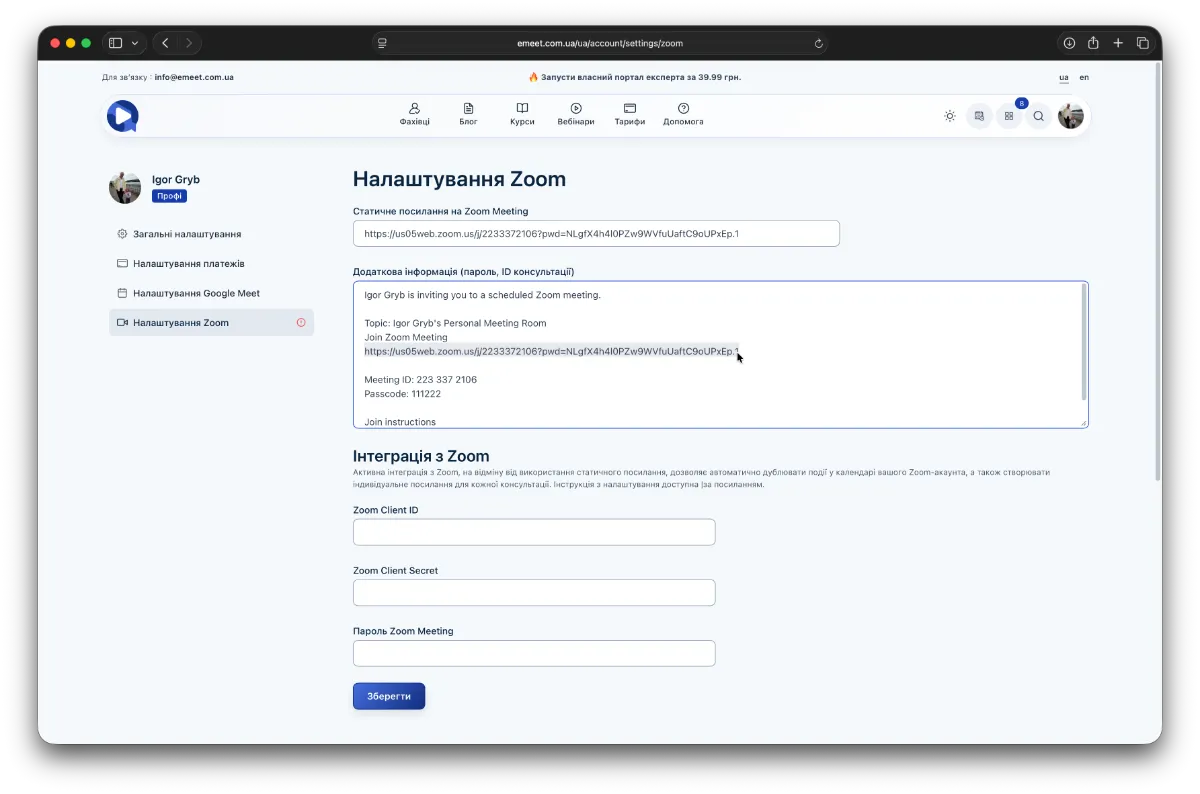
Next, highlight the meeting room link in this field and paste it into the Static Zoom Meeting Link field.
Google Meet Settings
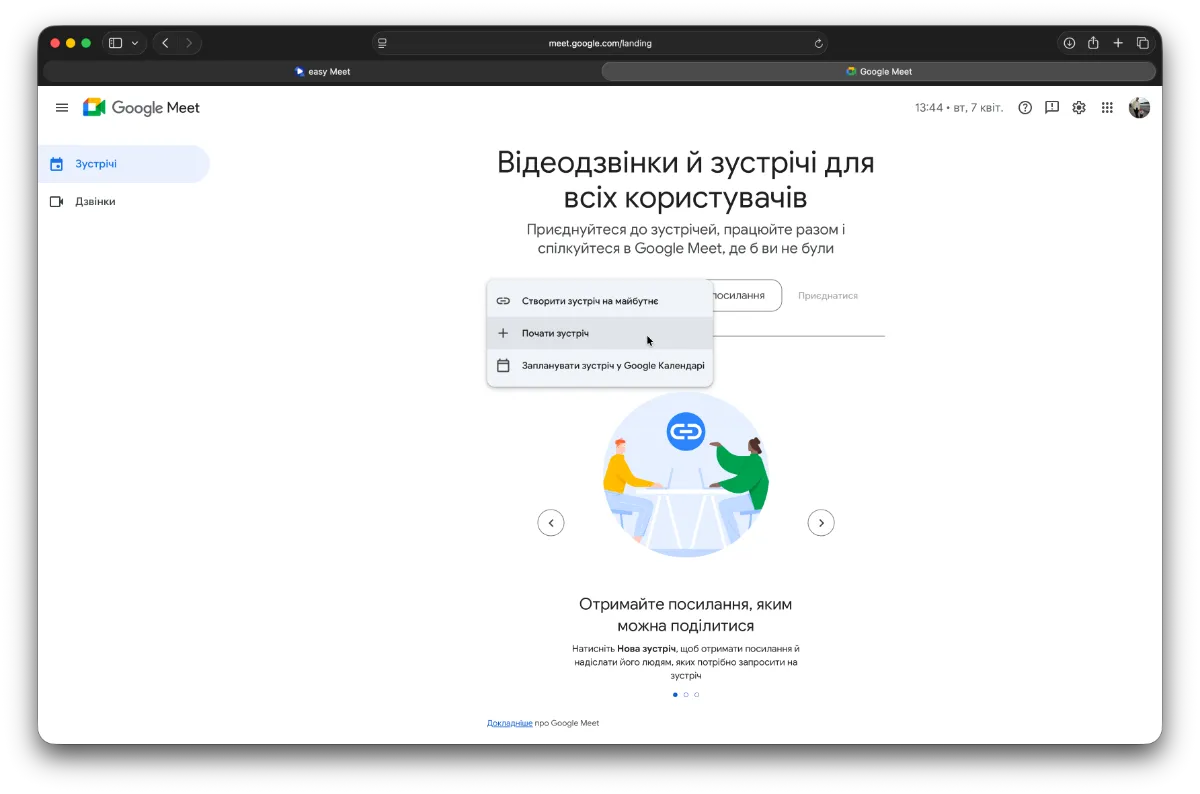
To set up Google Meet at the basic level, create a Google Meet room by going to https://meet.google.com/ and clicking New meeting -> Start a meeting.
Then copy the link of the created meeting
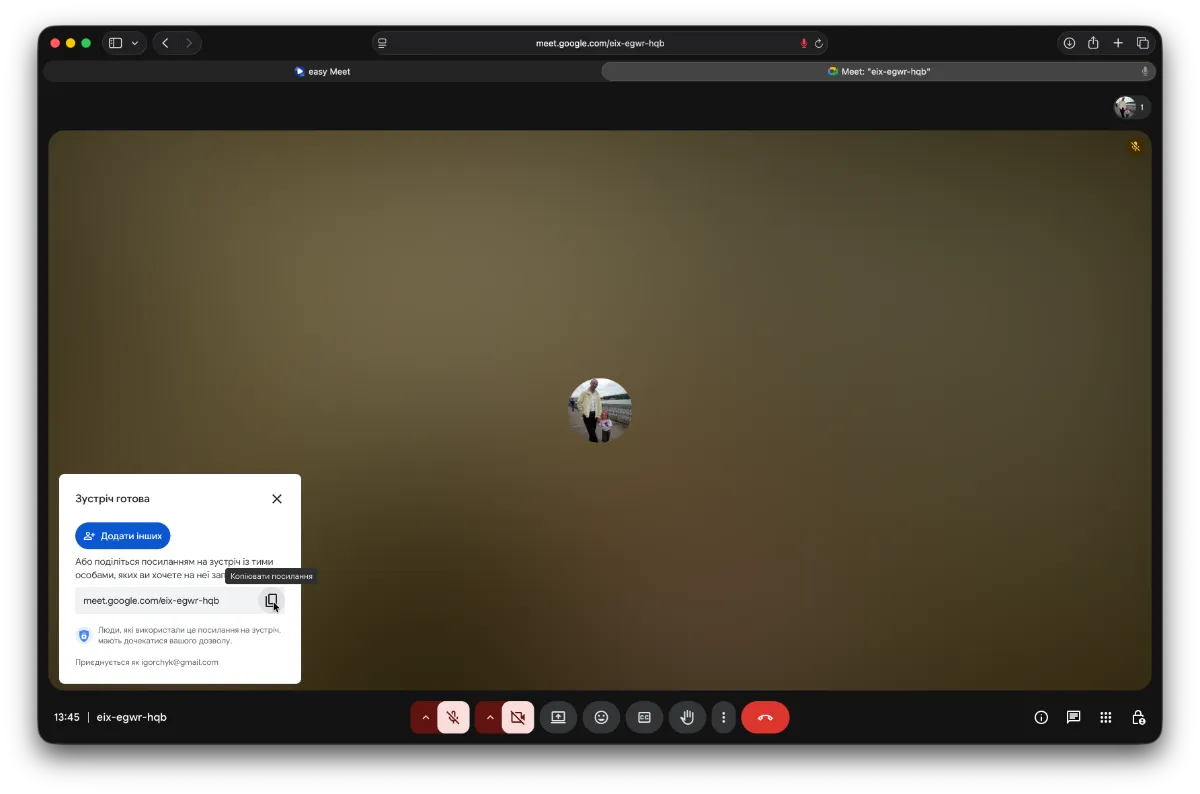 and paste it in your menu under Settings -> Google Meet Settings.
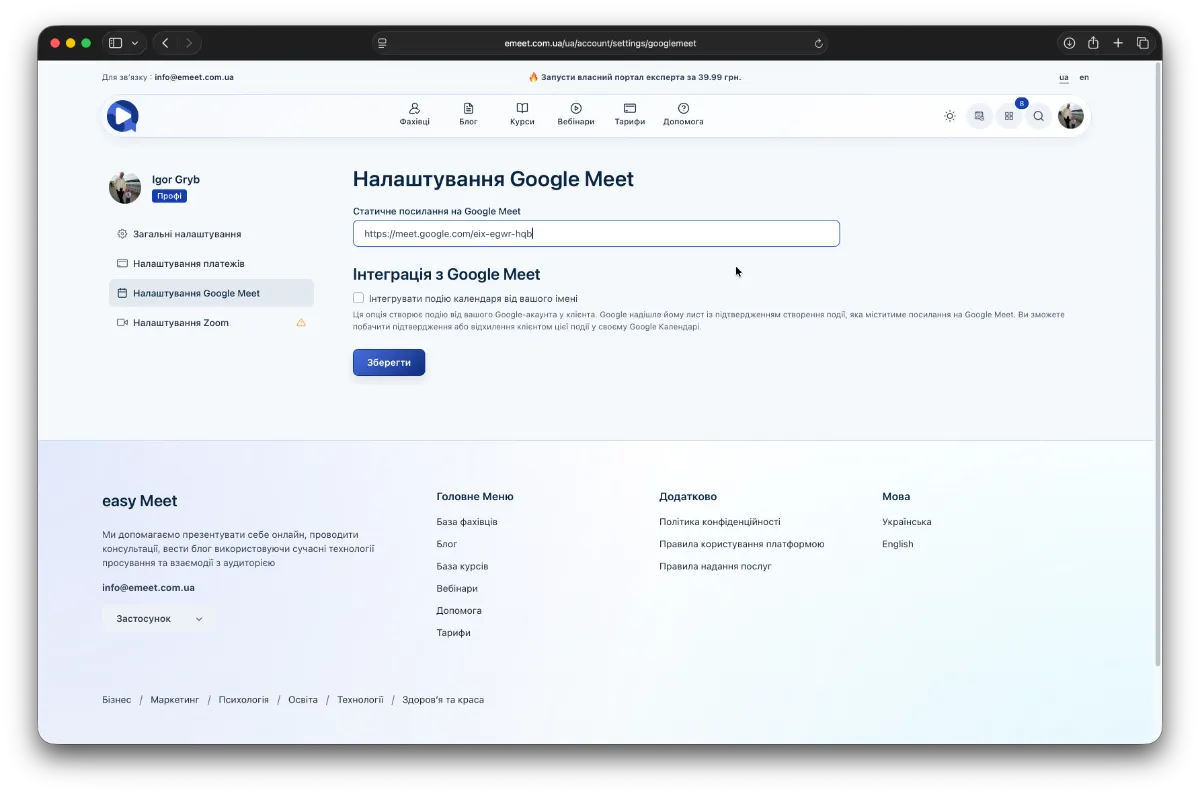
After that, this link will be integrated similarly to the Zoom Invitation link in all consultations where Google Meet is selected as the connection type.