Zoom Integration
Full Zoom integration can generate individual rooms for consultations and also create and synchronize events from the easyMeet calendar to the Zoom calendar.
How to set up Zoom integration
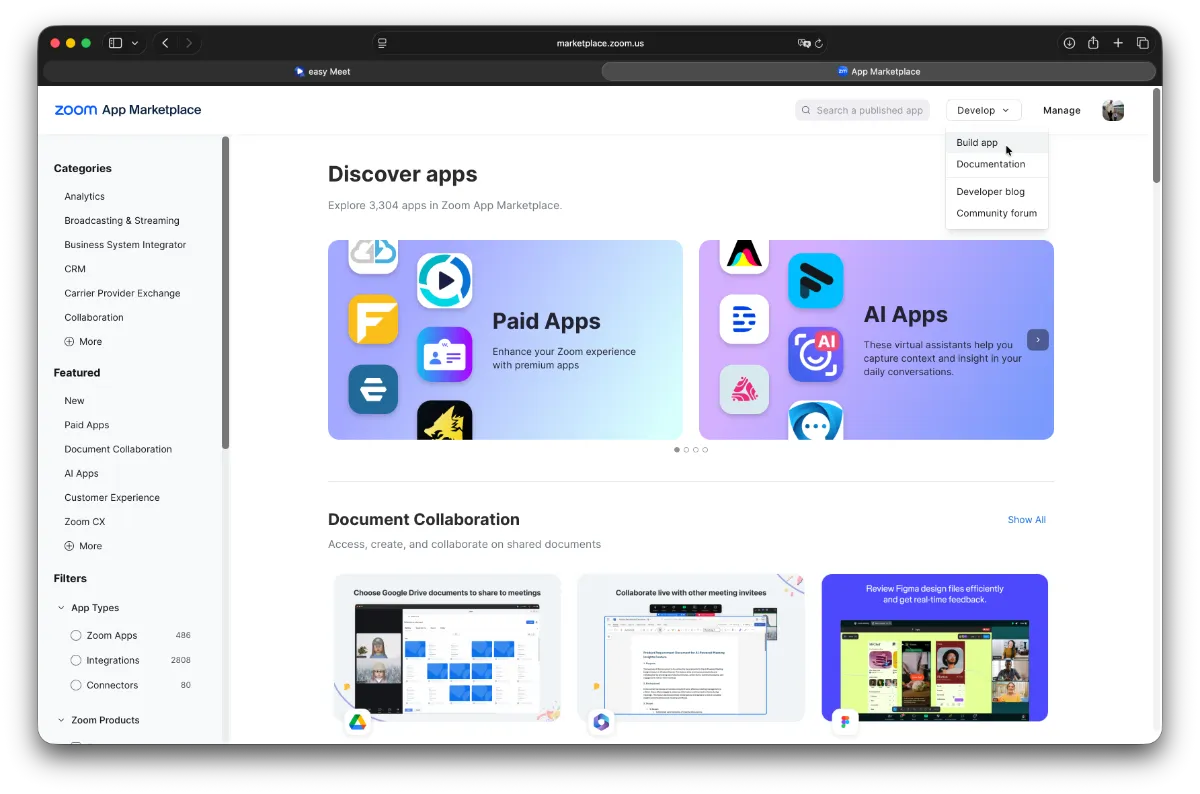
Go to the Zoom Marketplace and sign in with your Zoom account. In the top right corner, click Develop -> Build App
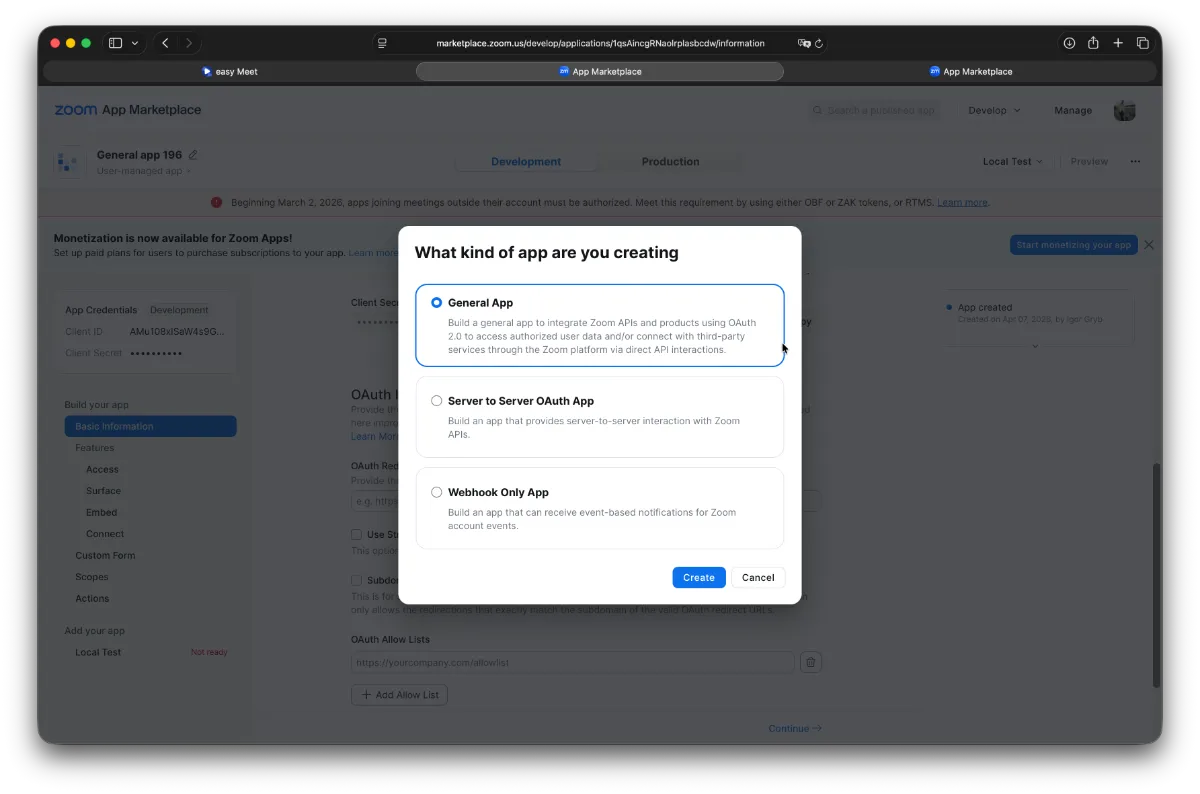
Select General App and click Create
In the Basic Information section
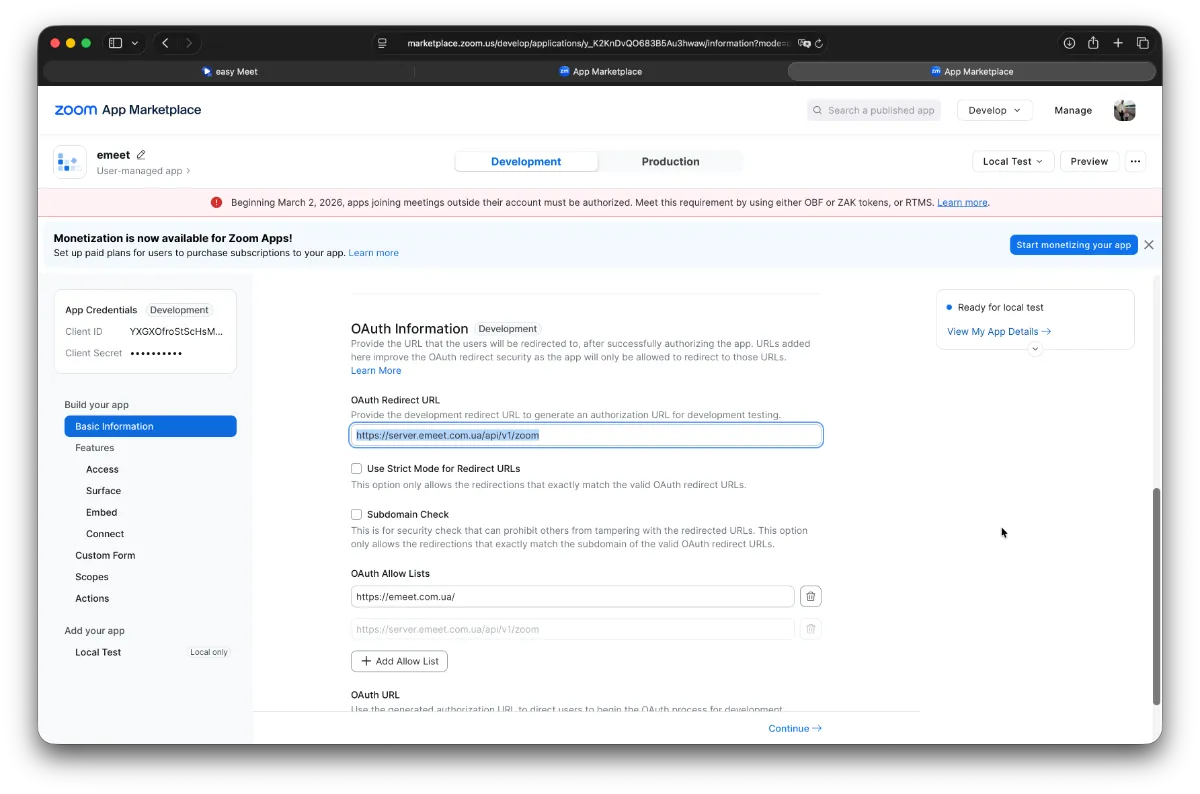
enter the following values
OAuth Redirect URL:
https://server.emeet.com.ua/api/v1/zoom
OAuth Allow Lists:
https://emeet.com.ua/
(also add your account domain if the Personal Domain feature is enabled)
Next, go to the Surface section
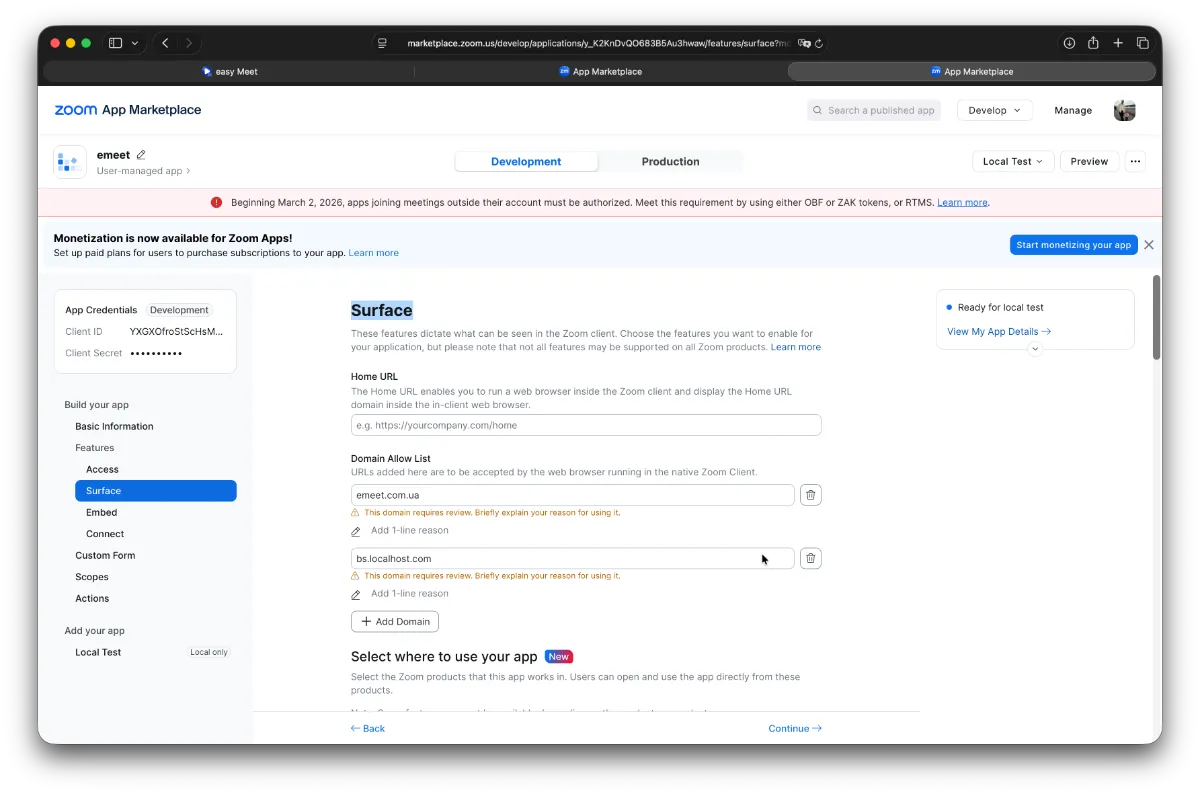
enter the following values
Domain Allow List:
emeet.com.ua
(also add your account domain if the Personal Domain feature is enabled)
Below, in Select where to use your app, select Meetings
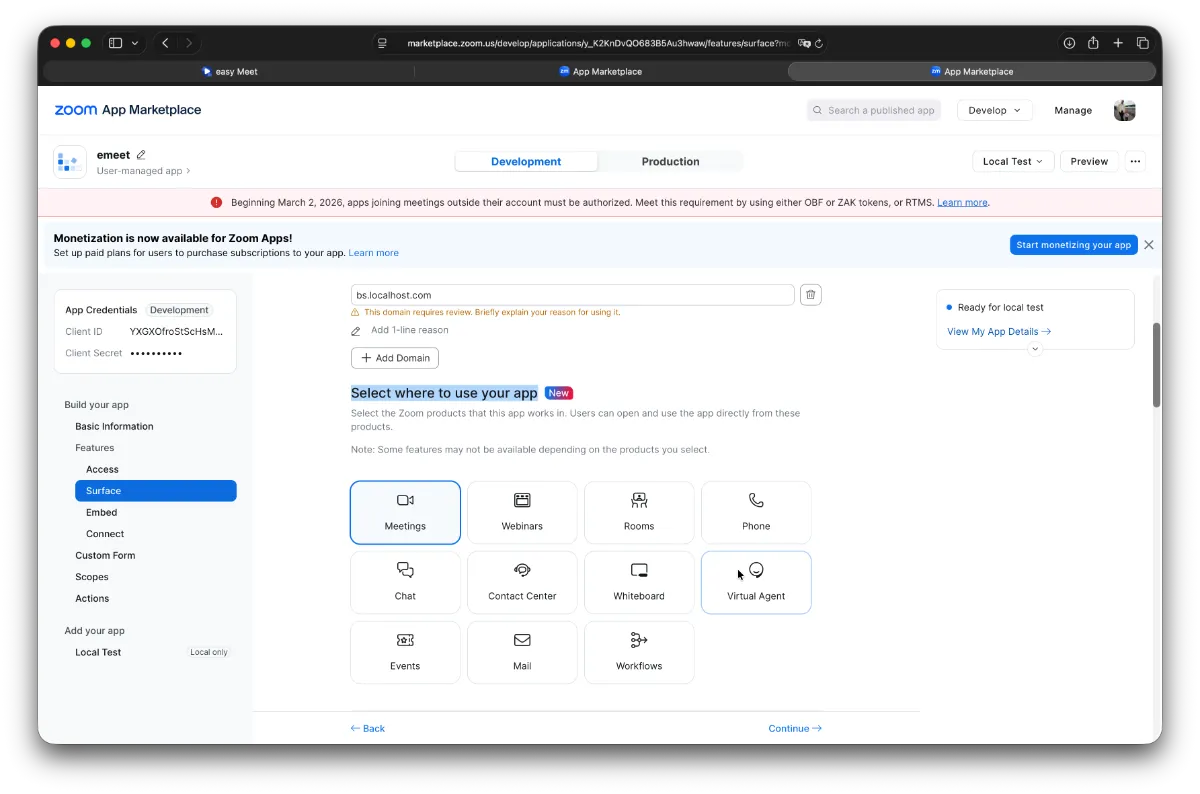
Then either click Continue several times or go to the Scopes section in the left sidebar and click Add Scopes
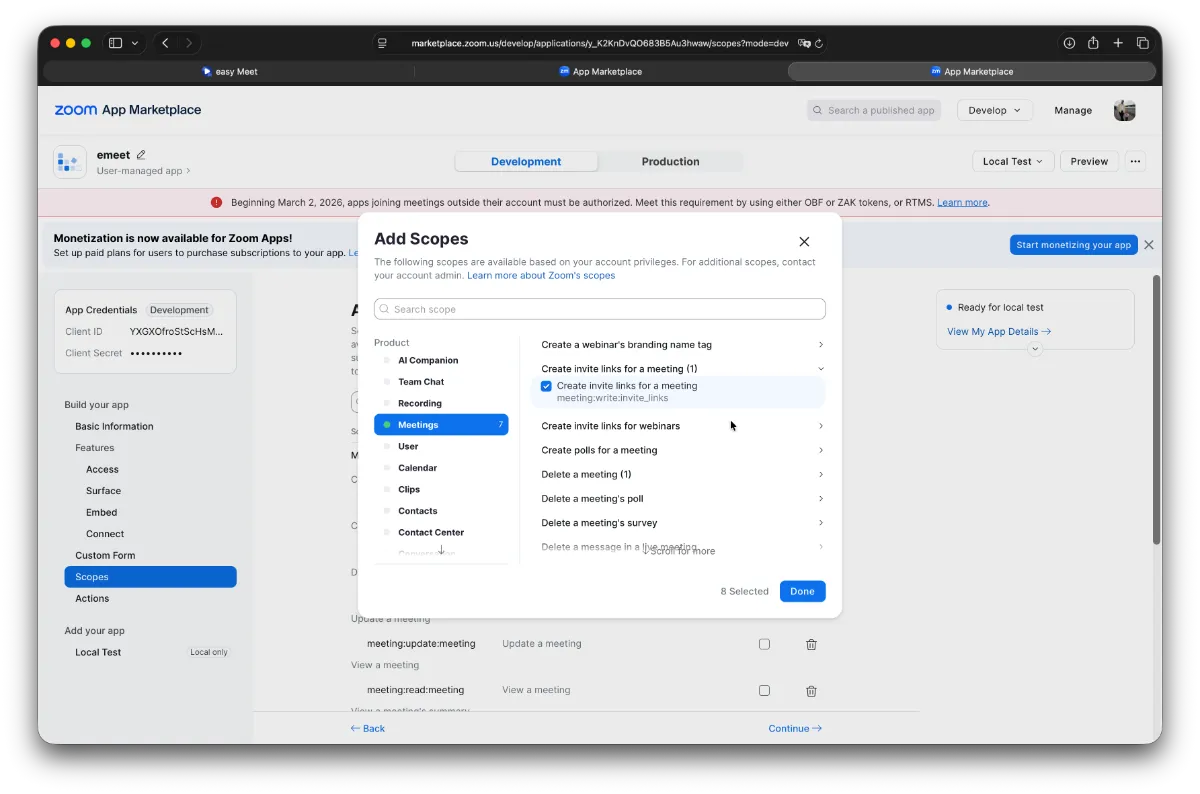
At this stage, you need to add permissions (Scopes)
In the left list dialog, select Meetings, find and enable the following permissions:
- Add an open app to a meeting
- Create a meeting for a user
- Create invite links for a meeting
- Delete a meeting
- Update a meeting
- View a meeting
- View a meeting's summary
- View a user's meetings
Also find Zoom App and add
- Enable Zoom App within Zoom Meeting Client
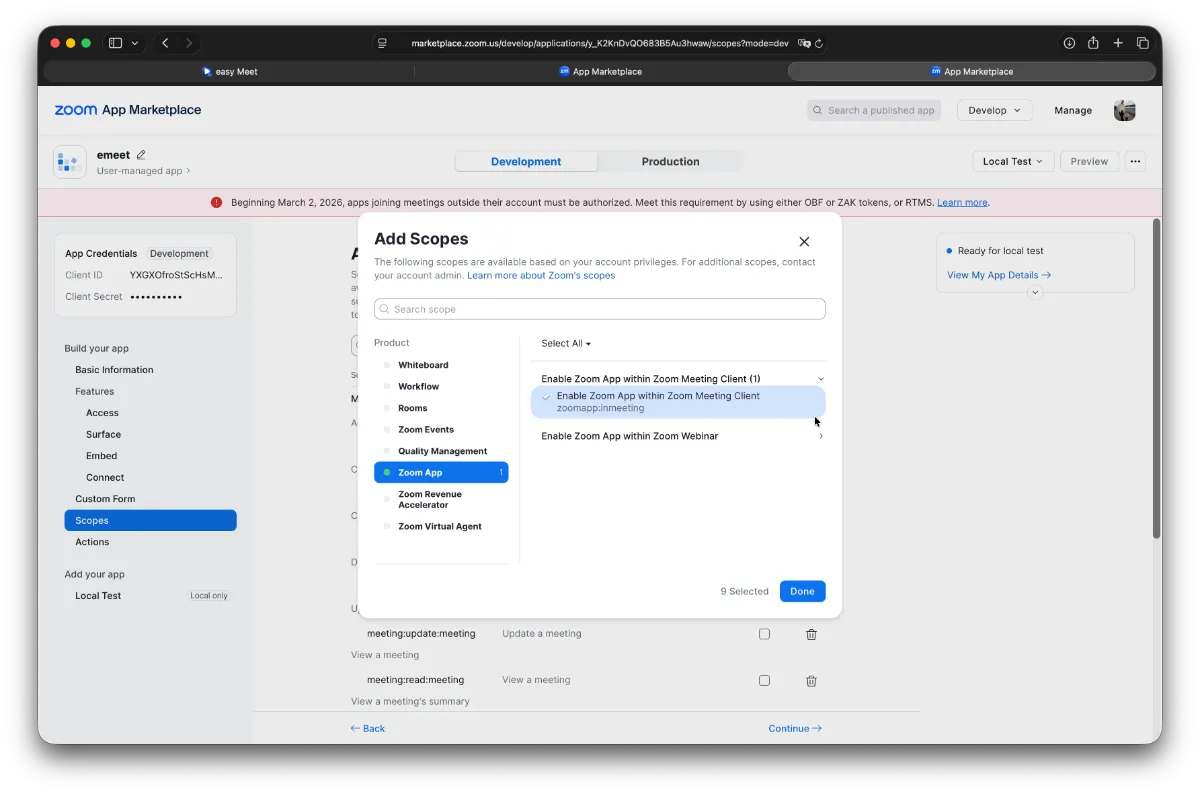
After that, click Continue twice to complete the registration of your app in Zoom Marketplace
Next, in the top right corner near your avatar, click Manage and your app will be created (usually only one)
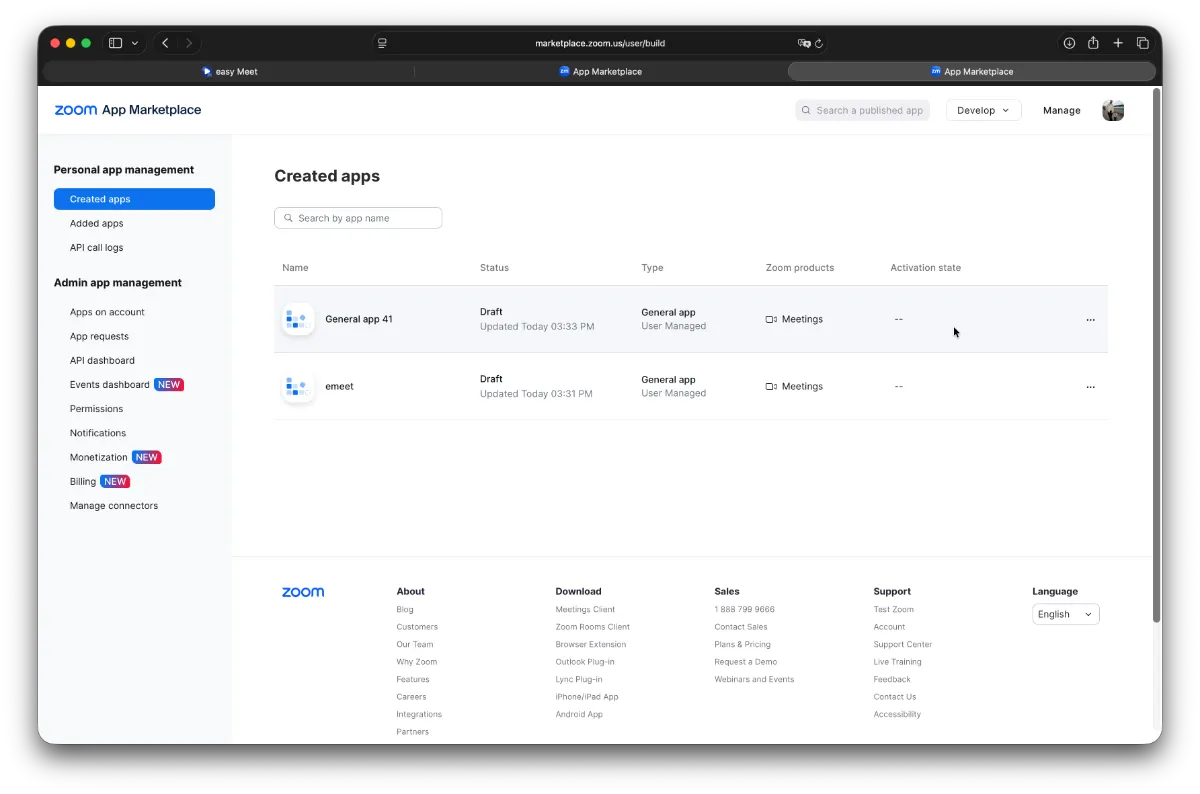
It is created in test mode, but this is enough for operation.
Next, open it by clicking its name (usually General app ...) and copy and save two parameters:
- Client ID
- Client Secret
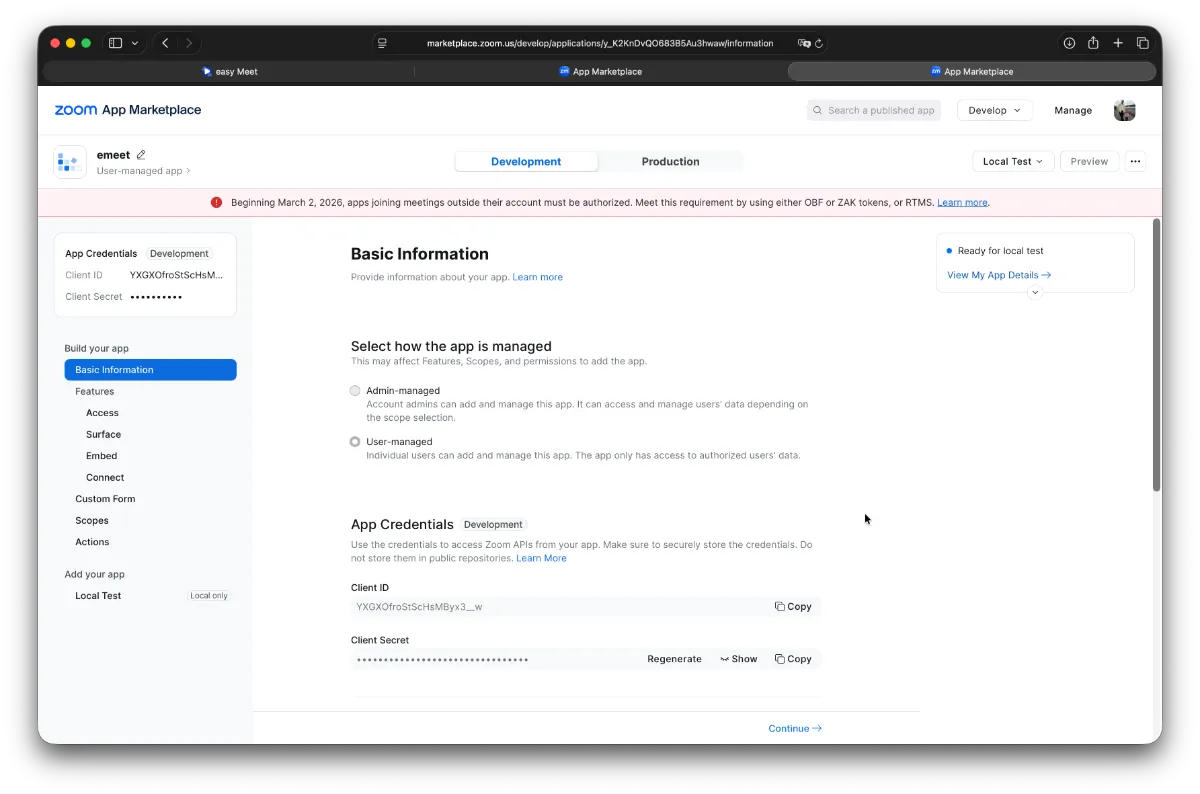
Either save these two parameters or enter them one by one in easyMeet settings under Settings -> Zoom Settings in the Zoom Client ID and Zoom Client Secret fields. In the Zoom Meeting Password field, enter a password for the video rooms (create your own). Then click Save. After successful saving, the Zoom Authorization button will appear
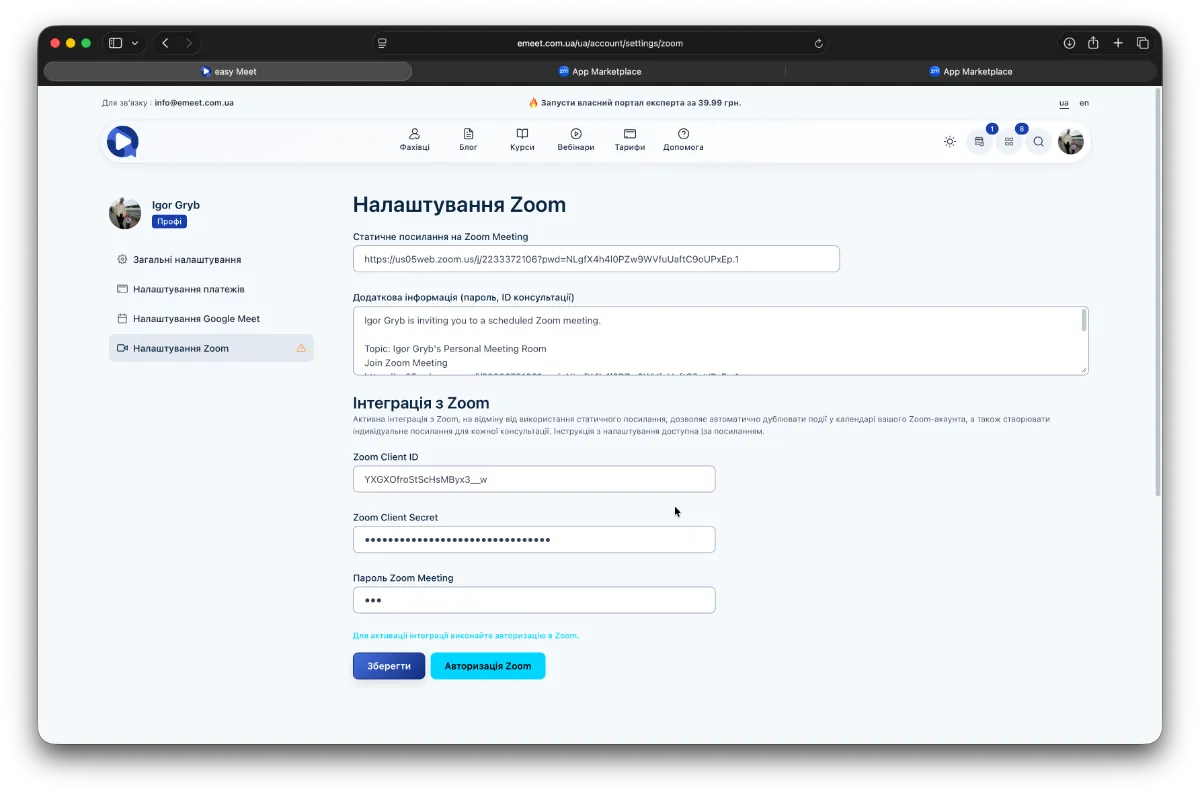
Zoom Authorization
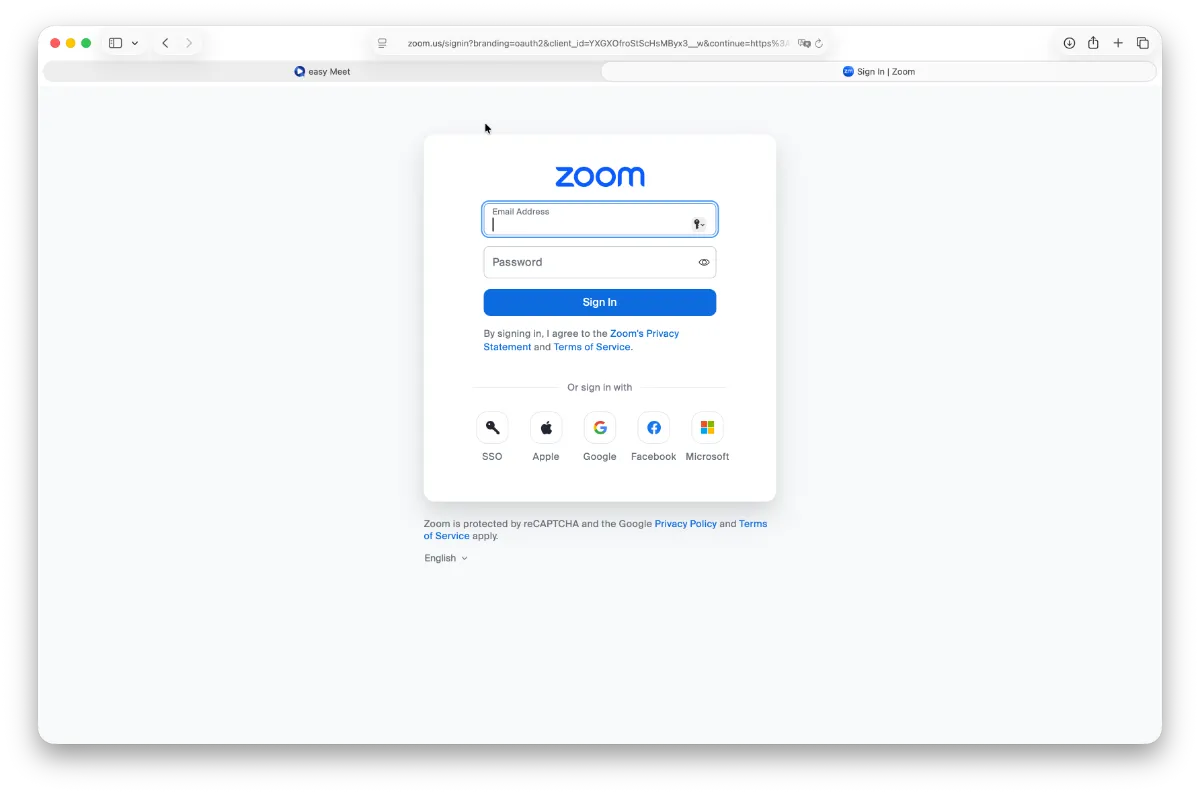
Click the Zoom Authorization button and complete the authorization (if required)
Then you need to grant access to your app in Zoom Marketplace
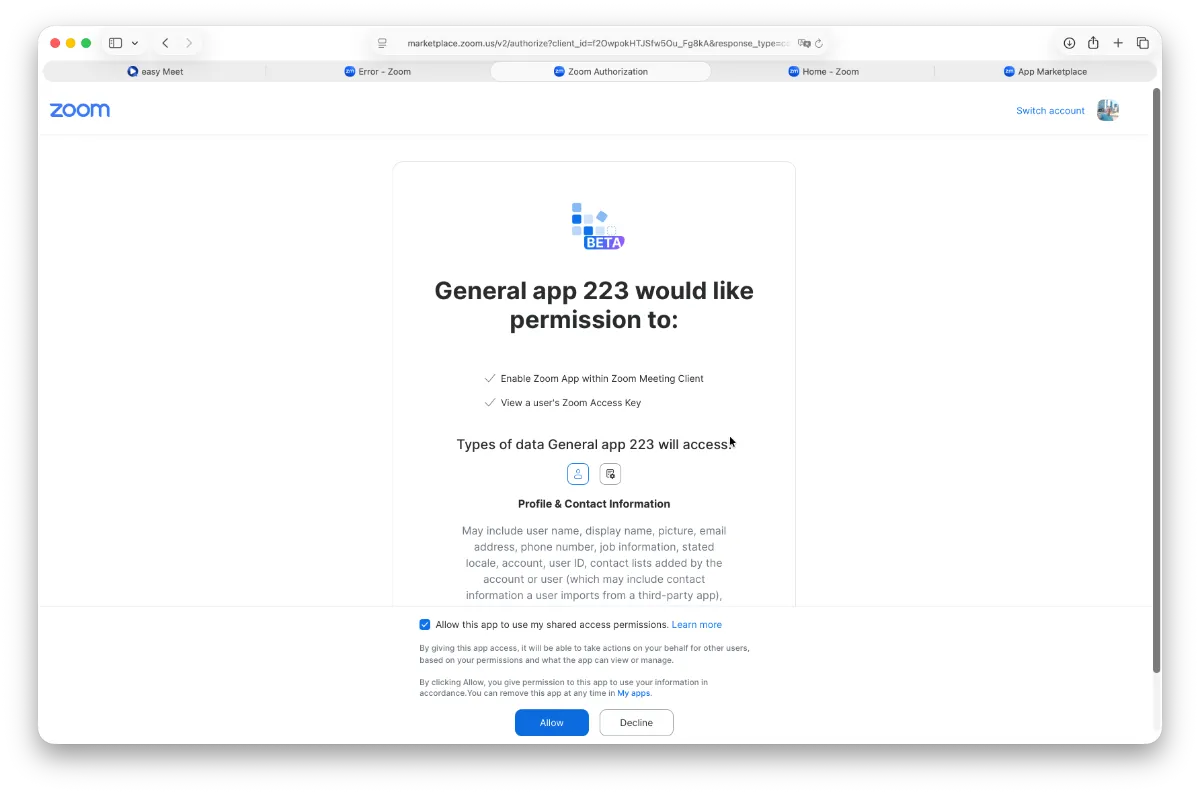
Enable Allow this app to use my shared access permissions and click Allow
The window will close and you will return to the settings page, and upon successful connection of the Zoom app, you will see the status of this connection
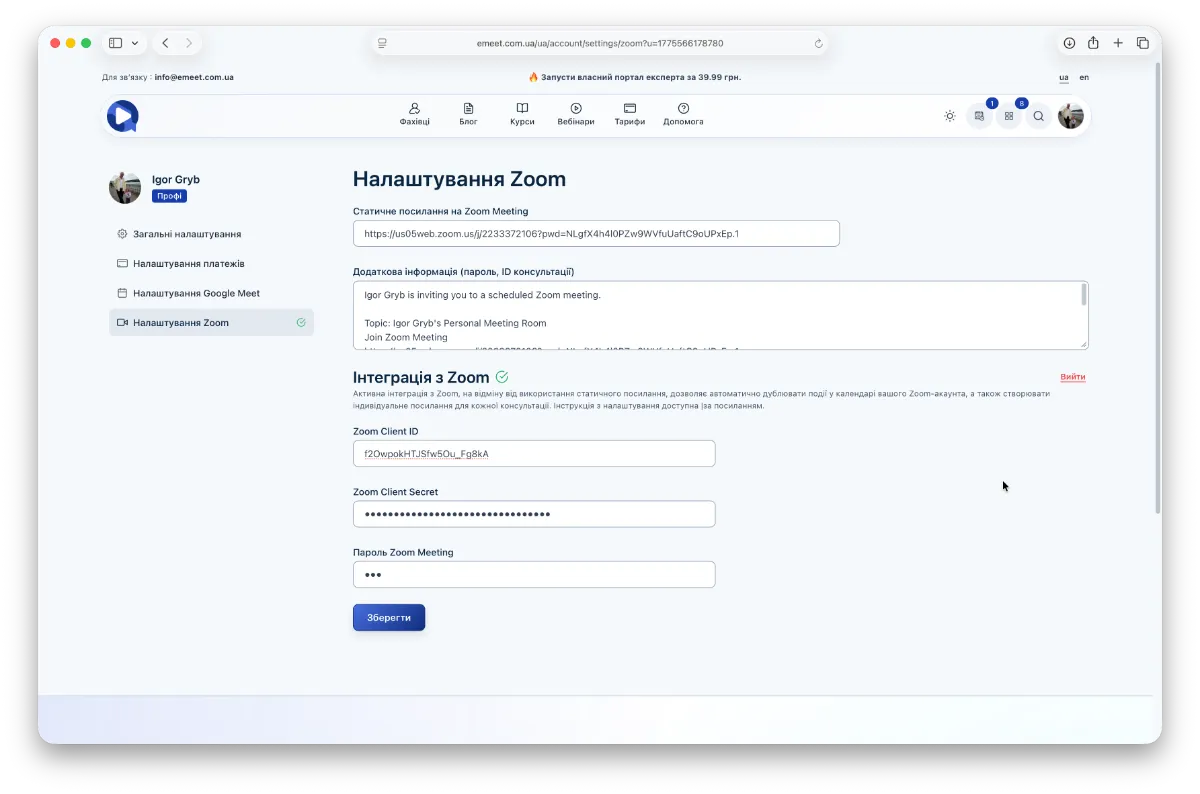
The green check icon next to Zoom Integration means easyMeet is connected to your Zoom account and from this moment Zoom integration is active and will work. All your consultations will appear in the Zoom calendar, and individual links will be created for them, integrated into easyMeet and Google calendar events as well as email notifications to you and your clients.